For creators & brands
AI Icon Generator for App Icons and Icon Sets
Icons are small, repeated and judged as a set, which makes them a different problem from single illustrations. Define a style once, generate each icon from the same prompt skeleton, and check every result at the size it will really be used.
Made with OpenDream
How it works
- 01
Write a style skeleton
Define the shared rules, such as 'flat icon, 2px rounded outline, two-tone teal and navy, centered, plain background'. Only the object changes from icon to icon.
- 02
Generate each icon from it
Insert one object per prompt, like calendar, shopping bag or bell, and keep everything else identical so the set stays consistent.
- 03
Review at small size
View icons at 24–48 px. Regenerate any that lose clarity, use transparent backgrounds, and redraw the approved set as vectors.
Why create AI icon generator with OpenDream
Consistent sets
Reusing one prompt skeleton across icons keeps line weight, color and perspective aligned.
Transparent output
GPT Image 2 can generate icons straight onto a transparent background, and Remove Background covers the rest.
Styles beyond flat
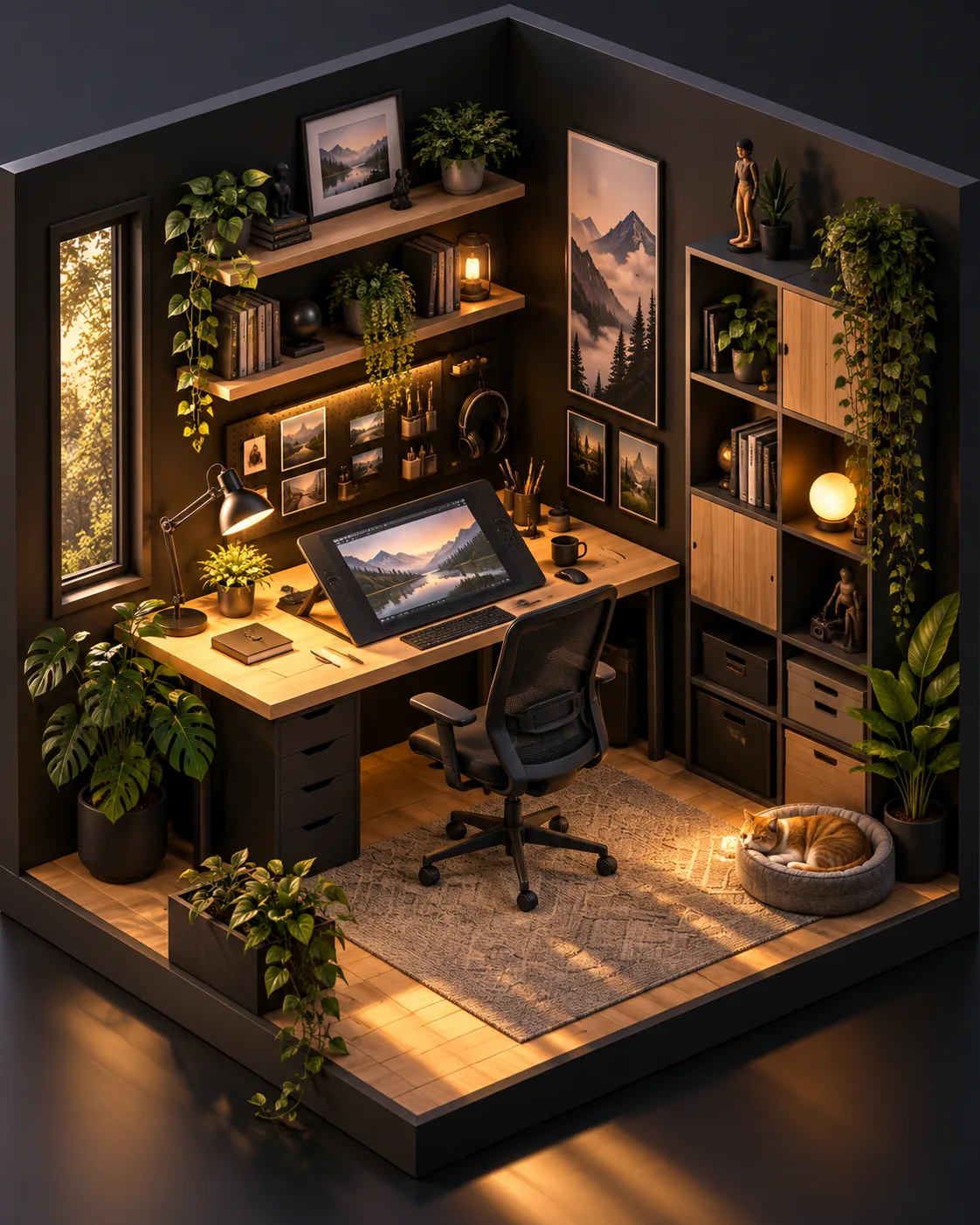
Isometric, clay and 3D presets suit app icons and feature illustrations that benefit from depth.
A home for the library
Save approved icons to a collection so the whole set stays together as it grows.
Designing icons that work at 24 pixels
Small sizes are unforgiving. An icon that looks charming at 1024 pixels may become a smudge at 24. Favor bold silhouettes, few details, generous internal spacing and no text. Describe objects in their simplest recognizable form: 'a bell with a small clapper' rather than 'an ornate brass bell with engravings'.
Consistency separates an icon set from a pile of icons. Keep line weight, corner radius, perspective, color count and padding identical. The easiest method is a prompt skeleton where only the object changes, for example 'flat line icon of a [object], 2px rounded strokes, single teal color, centered on a square canvas with even padding'.
App icons follow different rules from interface icons. They are usually one bold symbol on a filled background shape, sometimes with depth or a gradient, and they must stand out among other apps on a home screen, which is where clay, 3D and isometric styles shine. App stores publish their own icon guidelines, so design to those templates.
Treat generated icons as high-quality drafts. The output is raster, so for production, trace the final set in a vector editor, snap strokes to the pixel grid and export every size you need. Upscaling can help if you want a larger raster reference to trace from.
Prompt examples
Interface line icon
Flat line icon of a calendar with a small check mark, 2px rounded strokes, single teal color, no fill, centered on a square canvas with even padding, transparent background, clean minimal UI style
Every attribute except the object is fixed, so replacing 'calendar' with another object yields a matching icon.
Try this promptClay app icon
App icon of a friendly cloud with a small sun peeking out, soft clay 3D style, rounded shapes, pastel blue rounded-square background, gentle top light, simple and readable, no text
A single bold symbol on a filled rounded square is the standard structure for an app icon.
Try this promptIsometric feature icon
Isometric icon of a small server rack with blinking green lights, clean geometric shapes, limited palette of slate, white and lime, soft shadows, centered, plain white background
Isometric icons suit feature pages, where a little depth helps explain the concept.
Try this promptTwo-tone set member
Two-tone filled icon of a shopping bag, navy base with a coral accent on the handle, flat shapes, no outlines, rounded corners, centered with generous padding, transparent background
Two-tone fills stay legible at small sizes and are simple to vectorize later.
Try this promptGame inventory item
Game inventory icon of a glowing blue potion bottle with a cork stopper, bold dark outline, cel shading, a small highlight on the glass, centered on a transparent background, readable at small size
Thick outlines and cel shading keep game icons clear against any background.
Try this prompt
Start from a template
Frequently asked questions
- Can I get icons as SVG files?
- No. Generated icons are raster images. Use them as references and trace them in a vector editor for production, which also lets you align strokes precisely.
- How do I make a whole set match?
- Use one fixed prompt skeleton with the same style, color, stroke and padding words, change only the object, and regenerate any icon that drifts.
- Can icons have a transparent background?
- Yes. GPT Image 2 can generate with transparency, or run Remove Background on icons made on a plain color.
- Can I ship generated icons in a commercial app?
- Yes, commercial use is part of paid plans. Avoid imitating other companies' app icons or logos.
Keep exploring
Ready to create?
Pick a plan and you only spend credits on images you actually receive.
Start creating