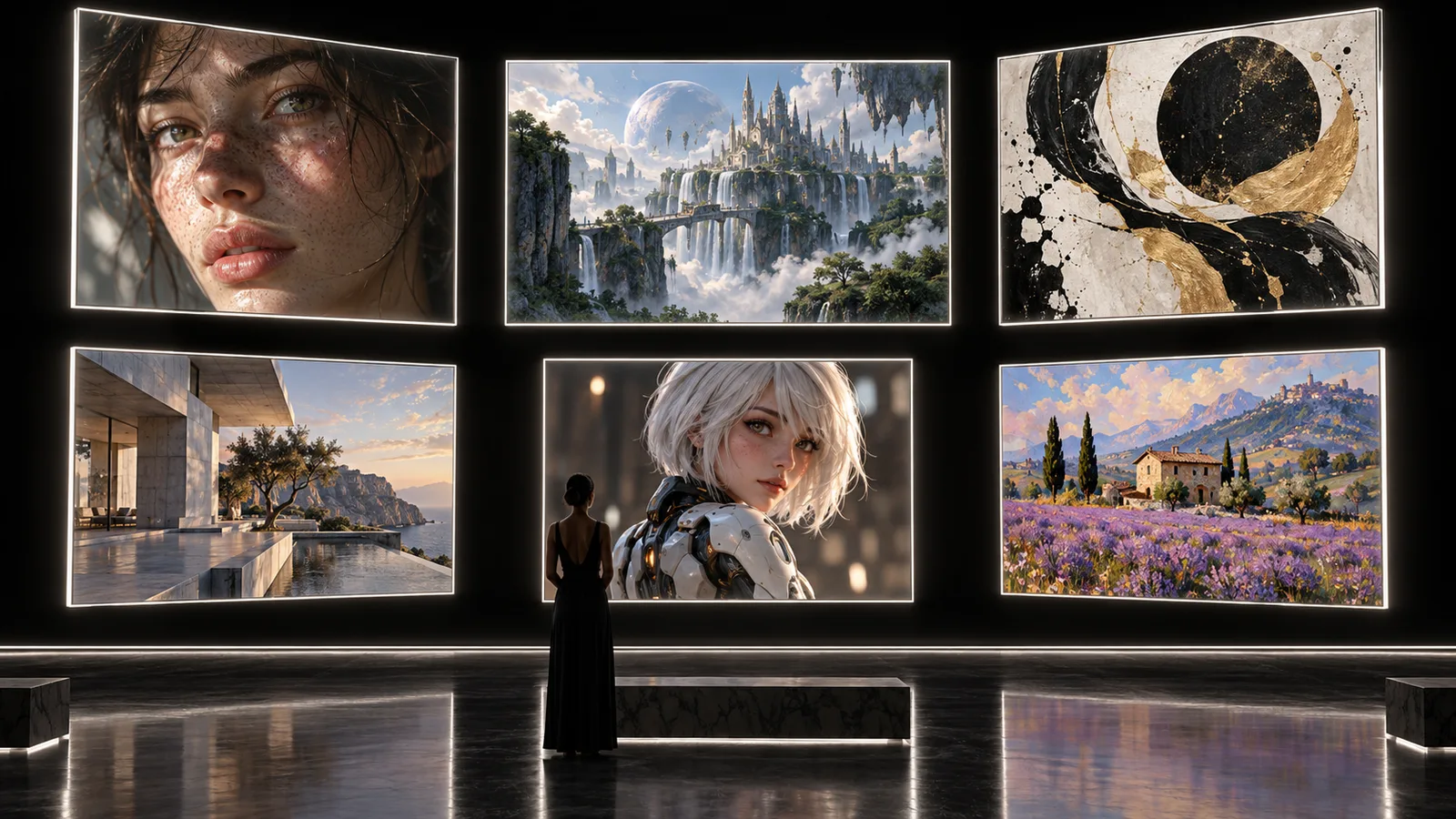
AI generator
AI Art Generator for Exploring Artistic Styles
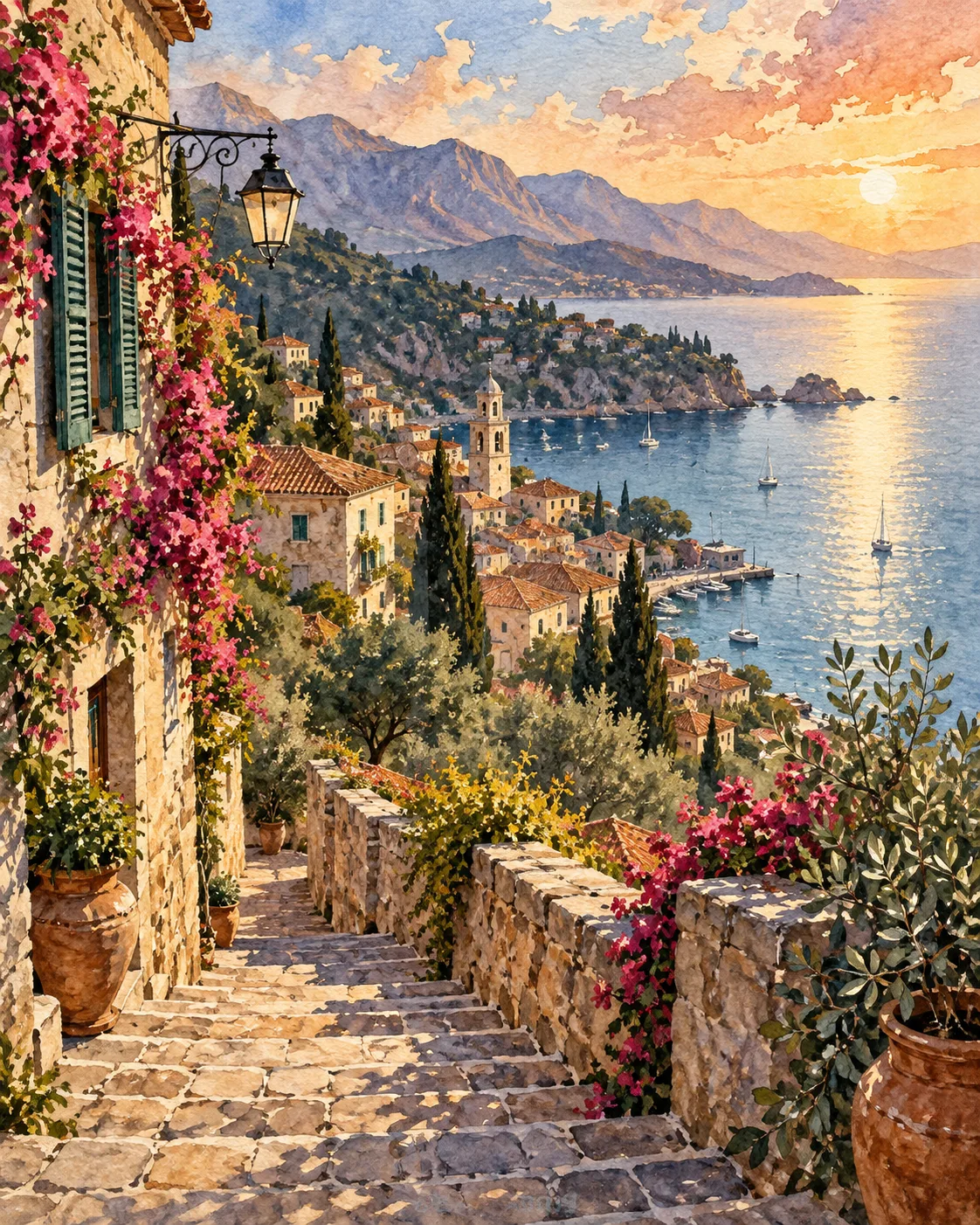
Describe a subject, pick a style, and see how the same idea reads as a watercolor, an oil painting, a paper-cut scene or a pixel-art sprite. OpenDream AI is set up for experimenting: remix any result, compare looks side by side, and keep the ones that work in a collection.
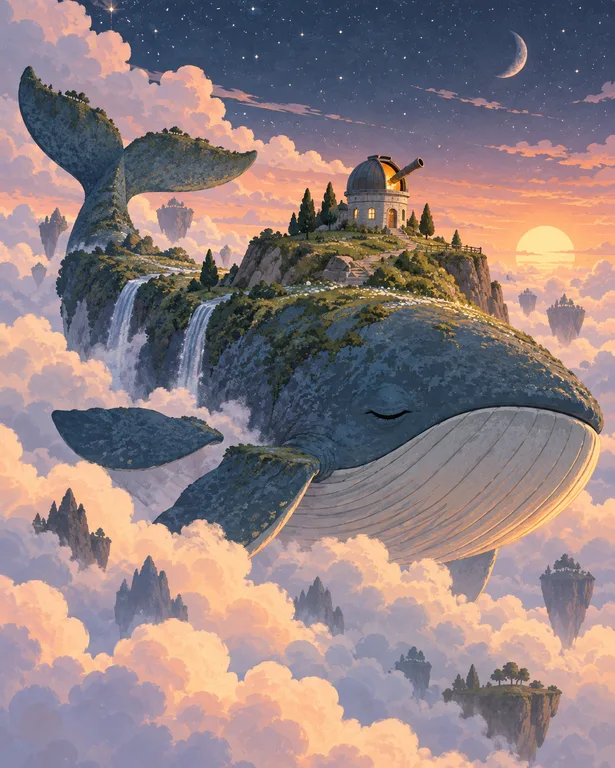
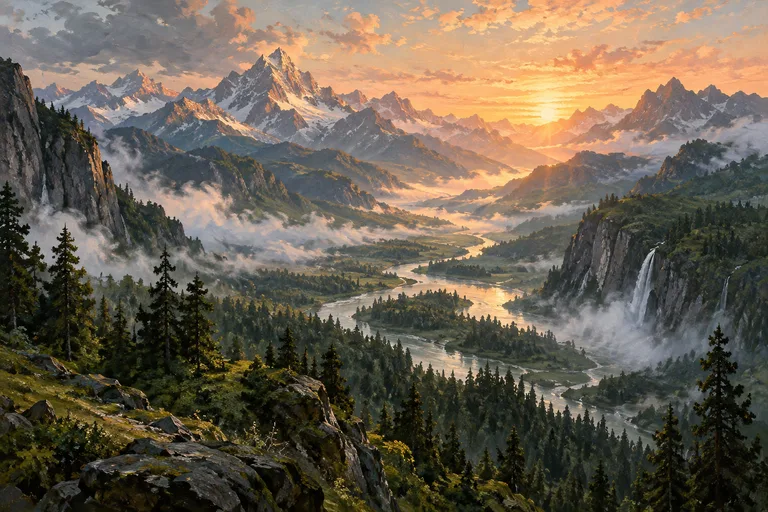
Made with OpenDream
How it works
- 01
Start with a subject, not a style
Write one sentence about what you want to see, such as a lighthouse in a storm or a fox asleep in tall grass. Holding the subject steady makes it easier to judge what each style actually changes.
- 02
Run it through two or three styles
Try the same subject with presets like watercolor, surreal and paper-cut. Each run can return up to four images depending on your plan, so you also see variation within a single style.
- 03
Remix the one that clicks
Open the strongest result and remix it: shift the palette, the brushwork or the time of day while the composition stays put. Save keepers to a collection so your direction stays visible.
Why create AI art generator with OpenDream
A broad style library
Presets range from oil painting and watercolor to clay, paper-cut, isometric and pixel art. Each sets a visual direction that you can still steer with your own words.
Remix instead of restarting
Any image can seed the next one. Remixing keeps what already works and lets you change a single variable, which is how a personal style usually develops.
Model choice handled for you
Painterly texture, flat graphic color and dreamlike surrealism suit different models. Smart mode picks one automatically, or you can choose FLUX.2, Seedream 5 or another model yourself to compare.
Collections for series work
Group related pieces into projects and collections, whether that is a deck of illustrated cards, a zine, or a run of seasonal prints that need to feel related.
How to get more out of artistic styles
Style words work best when they describe materials and technique rather than just a label. 'Oil painting' is a start; 'thick impasto oil paint, visible palette-knife strokes, warm umber underpainting showing through' tells the model what the surface should look like. The same goes for watercolor: mention wet-in-wet blooms, granulating pigment or hard edges where the paint dried, and the result moves away from a generic filter look.
Composition carries across styles, so decide it first. A low horizon with a big sky, a centered subject surrounded by empty space, or a figure placed on the left third will all survive the jump from photoreal to paper-cut. When a style change breaks an image, it is often because the composition was never specified and the model filled that gap differently each time.
Palette is the quickest lever for making several images feel like one body of work. Name three or four colors, for example 'muted teal, rust orange, bone white', and repeat them across prompts. A restricted palette also makes stylized work look more deliberate, which matters for prints and covers.
When blending styles, give one of them priority. 'Woodblock print in the Japanese tradition with a single neon accent' produces a clearer result than listing two styles as equals. Historical movements and techniques are fine to reference by name; for the look of a living artist, describe the qualities you like instead, such as line weight, color temperature or the way figures are simplified.
Prompt examples
Storm lighthouse in impasto oil
A lone lighthouse on a black basalt cliff during a winter storm, thick impasto oil paint with visible palette-knife strokes, churning grey-green sea, a single warm beam cutting through rain, low horizon, dramatic sky filling two thirds of the frame
Describing the paint surface and where the sky sits gives the model both a texture and a composition to commit to.
Try this promptPaper-cut fox diorama
Layered paper-cut diorama of a red fox sleeping under ferns, five depth layers of cut card in forest green, moss and amber, soft shadows between the layers as if lit from above, clean edges, shallow depth of field
Stating the number of layers and the light direction makes the shadows convincing, and those shadows are what sell a paper-cut look.
Try this promptQuiet surreal staircase
A spiral staircase rising out of a calm pink lake into an overcast sky, the top steps dissolving into a flock of birds, quiet surrealist painting, soft diffuse light, pale pastel palette, generous negative space
Surrealism lands best when one impossible idea sits inside an otherwise calm scene; the muted palette keeps it from turning noisy.
Try this promptWoodblock pass with one neon accent
Woodblock print of a mountain pass at dusk in the traditional Japanese printmaking style, flat indigo and ochre areas, carved wood grain texture, one small roadside lantern glowing neon magenta as the only modern touch
One dominant tradition plus a single accent from another style keeps the blend readable instead of muddy.
Try this promptPixel-art tide pool
Pixel art scene of a tide pool at low tide, 32-color limited palette, crabs, starfish and anemones, crisp single-pixel outlines, gentle dithering in the water, top-down view, no anti-aliasing
Pixel art needs technical constraints like palette size and outline rules; without them the result looks like a blurry downscale.
Try this prompt
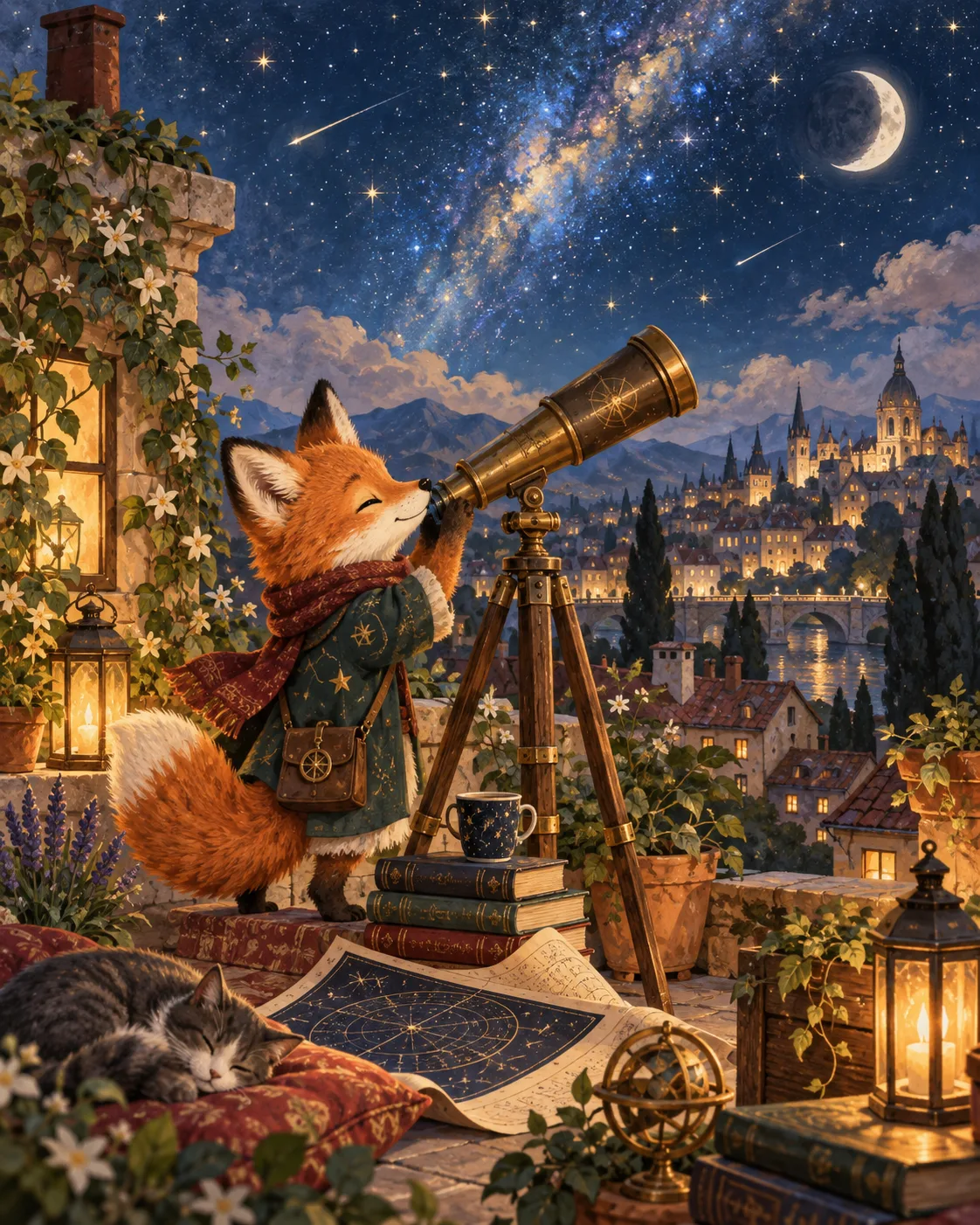
Start from a template
Frequently asked questions
- Which art styles can I choose from?
- The style library covers photoreal, cinematic, watercolor, oil painting, digital illustration, comic, pixel art, clay, paper-cut, isometric, surreal, retro and more. You can also skip presets and describe a style entirely in your prompt.
- Can I make art that looks like a particular artist's work?
- We suggest describing the qualities you admire, such as brushwork, palette or subject matter, rather than naming a living artist. Historical movements and techniques like impressionism, woodblock printing or art nouveau are fine to reference.
- How do I keep one style across a series?
- Reuse the same style preset, the same palette words and a fixed description of technique, and change only the subject. Remixing from a finished piece tends to be more consistent than starting every image from scratch.
- Can I sell prints of what I create?
- Commercial use comes with paid plans. Your work stays private by default and only appears in the public gallery if you choose to publish it.
Keep exploring
Ready to create?
Pick a plan and you only spend credits on images you actually receive.
Start creating