AI generator
AI Image Editor That Takes Instructions in Plain Language
Open an image, type the change you want, and get an edited version back. There is no brush or mask to paint; you describe the result, such as 'replace the grey sky with a clear sunset' or 'make the jacket dark green', and the model applies it.
Made with OpenDream
How it works
- 01
Open an image
Start from one of your generations or upload a photo you own. The editor works on the whole picture, so there is nothing to select.
- 02
Describe one change at a time
Write a direct instruction: 'remove the power lines from the sky', 'change the time of day to golden hour' or 'add a steaming cup of coffee on the table'. Single, specific edits are more reliable than long lists.
- 03
Finish with Upscale or Remove Background
When the edit looks right, upscale it for print or big screens, or isolate the subject with Remove Background for use in a layout.
Why create AI image editor with OpenDream
Instruction-based edits
Background swaps, relighting, color changes, adding or removing objects and changing clothing are all done by describing the outcome.
Preserves what you name
Good instructions say what should stay the same, so the subject, framing and style carry through the edit.
Upscaling in the same workflow
Crisp gives a clean enlargement of roughly 2×, while Topaz offers 2× and 4× for print-sized files.
Background removal
Remove Background isolates a subject for product listings, stickers, slides or composites.
Chain edits step by step
Every result can be edited again, so you can build a bigger change in stages instead of writing one complicated instruction.
Writing edit instructions that land
Instruction editing works best when the change is written as an outcome, not a process. 'Make the wall behind her deep terracotta' is clearer than 'repaint the background'. Refer to objects by appearance and position, especially when there are several similar ones: 'the smaller mug on the left' rather than 'the mug'.
Say what must not change. A line like 'keep her face, pose and the framing exactly the same' reduces drift, particularly in portraits where small shifts in features are obvious. If an edit keeps altering something you wanted preserved, name that thing explicitly on the next attempt.
Lighting edits are among the most useful and most overlooked. Turning 'flat midday light' into 'low warm sunlight from the right with long shadows' can rescue a dull photo, but the shadows have to make sense in the scene. State where the light comes from and the model will usually adjust shadows and reflections to match.
Break big changes into steps. Replacing the background, changing the outfit and relighting in one instruction invites compromise on all three. Make the largest structural change first, check it, then apply smaller adjustments to that result. Upscale only the final version rather than every intermediate file.
Prompt examples
Sky replacement
Replace the overcast grey sky with a clear late-afternoon sky with a few soft clouds, and warm the light on the buildings to match a sun coming from the left; keep the street, people and framing unchanged
Pairing the main change with its lighting consequences makes the edit look like one photograph rather than a composite.
Try this promptDeclutter a desk shot
Remove the charging cable, sticky notes and pen from the desk surface, leaving the ceramic vase and the notebook exactly where they are; fill the cleared area with the same oak grain and lighting
Naming what stays and describing the surface that fills the gap keeps the cleanup invisible.
Try this promptOutfit change
Change the man's grey hoodie to a navy wool overcoat with the collar turned up and a charcoal scarf; keep his face, hairstyle, pose and the snowy street background the same, with matching soft winter light
Precise garment details plus a clear list of preserved features cut down drift in the face and background.
Try this promptRelight a portrait
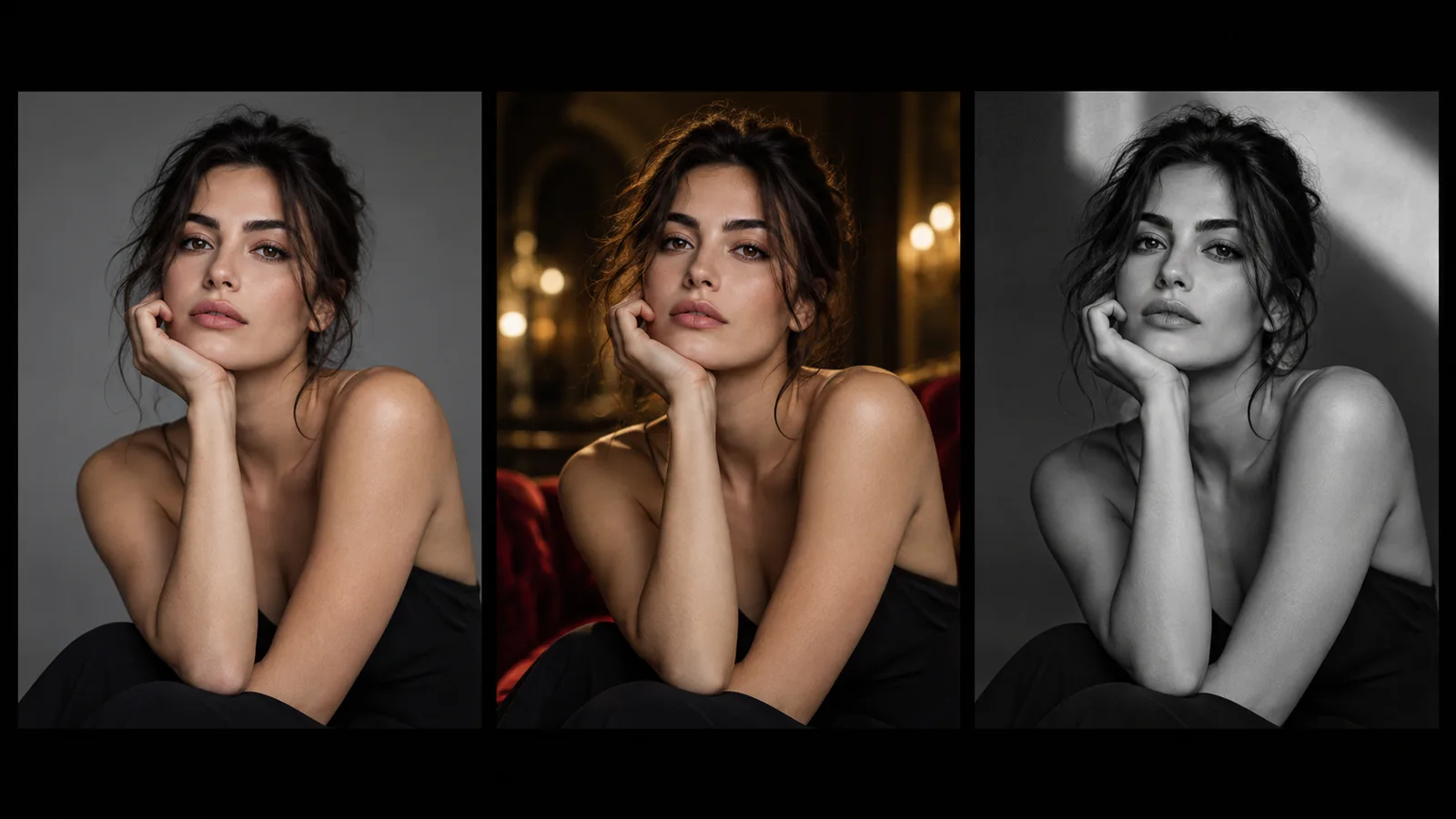
Relight the portrait with soft window light from the right, a gentle shadow on the left cheek, slightly warmer skin tones and a darker falloff in the background; do not change her expression, features or clothing
Giving a light direction and saying where shadows fall produces a believable relight instead of a brightness bump.
Try this promptSummer to autumn
Turn this summer garden into late autumn: orange and brown leaves on the trees and lawn, bare branches on the small birch, lower golden sunlight, same bench and path layout
Seasonal edits work well because color and light change across the whole frame while the structure stays put.
Try this prompt
Start from a template
Frequently asked questions
- Do I need to paint a mask or select an area?
- No. There is no brush or mask tool; you describe the edit in words. Refer to objects by appearance and position so the model knows which one you mean.
- Can I edit my own photos?
- Yes. Upload a photo you own and describe the change. Please do not use the editor to create misleading images of real people.
- Why did the edit change more than I asked for?
- Instruction editing regenerates the image with your change applied, so other details can shift. Add a sentence listing what must stay the same, and keep each instruction to a single change.
- How do I get a transparent background?
- Run Remove Background on the finished image. For new images, GPT Image 2 can generate on a transparent background directly.
Keep exploring
Ready to create?
Pick a plan and you only spend credits on images you actually receive.
Start creating