AI generator
AI Image Generator for Everyday Work
Need a header for a blog post, a background for a slide, or a placeholder scene for a website mockup? Describe it in plain words and get usable images in the format you need, with Smart mode choosing a suitable model for each request.
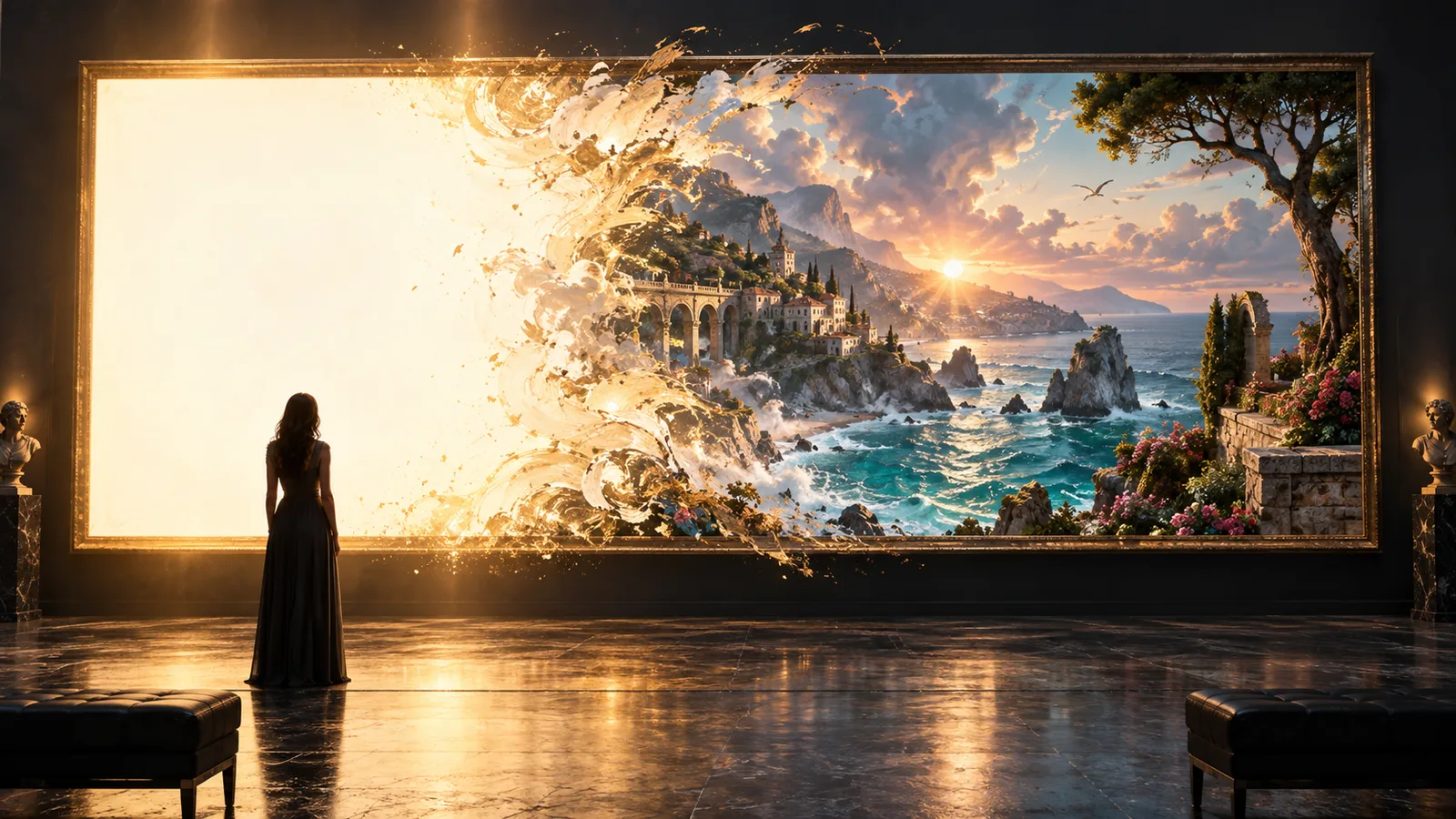
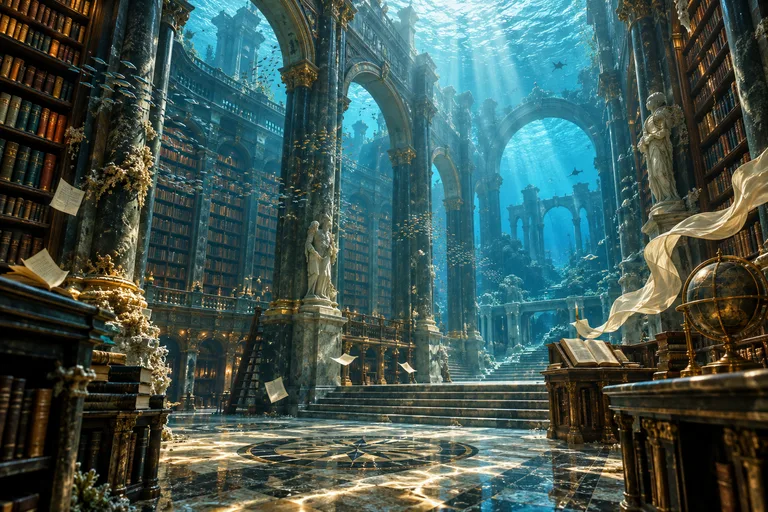
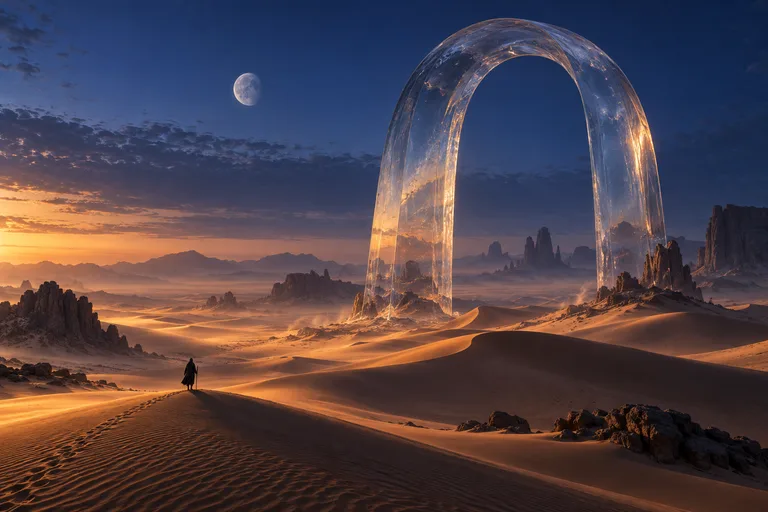
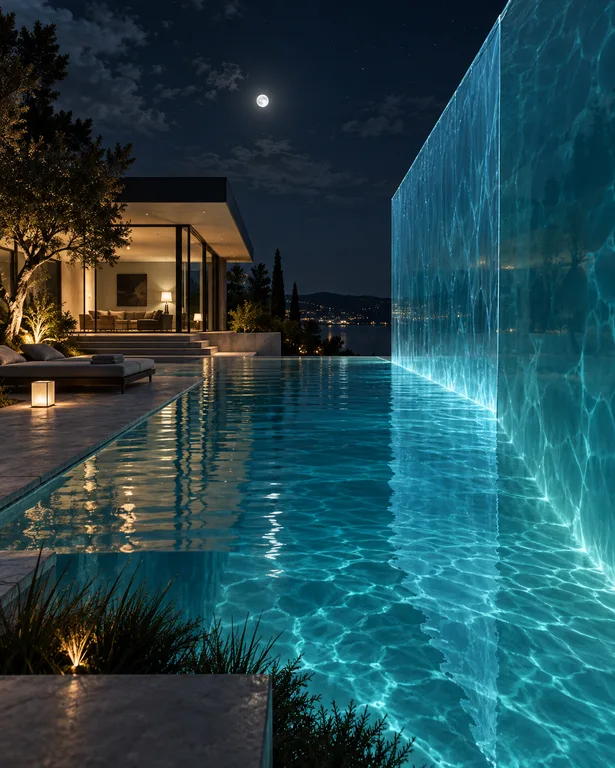
Made with OpenDream
How it works
- 01
Say what the image is for
Mention the use along with the subject, for example 'wide header image for an article about remote work'. That nudges the composition toward something that fits the job.
- 02
Pick the shape before generating
Choose 16:9 for headers and slides, 4:5 for feeds, 9:16 for stories or 1:1 for thumbnails. Cropping a finished image later usually cuts off something important.
- 03
Refine, then upscale the keeper
Adjust the wording on your best result, or open it in the editor for a small change. Once it is final, run Upscale so it holds up on large screens.
Why create AI image generator with OpenDream
Automatic model routing
A realistic kitchen, a clean diagram-like illustration and a scene with a readable sign all behave differently. Smart mode picks a model for each request so you can focus on the brief.
Direct model choice when you want it
If you already know what you need, choose from Nano Banana 2, GPT Image 2, FLUX.2, Seedream 5, Qwen3, Grok Imagine 2, Ideogram V3 or Imagen 4 and compare their output on one prompt.
Resolution for real layouts
Some models generate at up to 4K, and the Upscale tool enlarges other results, so images work as full-width website sections or presentation backgrounds.
Private until you publish
Work images stay in your account unless you explicitly publish them, which matters when a project has not launched yet.
Credits only for delivered images
You are charged when images arrive. If a generation fails, its credits go back to your balance.
Writing briefs for images you will actually use
Functional images have a job beyond looking good, and that job should shape the prompt. A blog header needs a clear focal point and room on one side if a title will overlap it. A slide background needs low contrast so text stays readable. A mockup placeholder needs neutral, believable surroundings. Writing 'calm, low-contrast background with empty space on the right third' is more useful than piling on adjectives about beauty.
Realism comes from specifics. Instead of 'an office', try 'a small shared office with plywood desks, a fern by a north-facing window, overcast daylight, a laptop and two coffee mugs'. Concrete objects and a named light source leave the model fewer gaps to fill with generic stock-photo defaults.
Aspect ratio is part of composition, not a setting to fix afterwards. Wide 16:9 and 21:9 frames favor landscapes, rooms and group scenes; tall 9:16 and 2:3 frames favor single figures, buildings and anything vertical. If subject and frame disagree, the model will either shrink the subject or crop it awkwardly.
For images that need to look consistent across a web page or a deck, write a short style line once and reuse it, for example 'soft natural light, muted earth tones, shallow depth of field, 35mm photo'. Keep that line identical and vary only the subject, and the set will read as one visual system.
Prompt examples
Article header: remote work
Wide header image of a tidy home workspace by a large window, laptop open on an oak desk, potted monstera, overcast morning daylight, muted beige and green tones, empty wall space on the right third for a headline, 35mm photograph
Naming where the empty space goes makes the image usable behind a title without further editing.
Try this promptLow-contrast slide background
Soft abstract background of blurred city lights at dusk seen through a rain-streaked window, deep navy and warm amber bokeh, very low contrast, no focal subject, gentle gradient from darker left to lighter right
Asking for no focal subject and low contrast keeps the background from competing with slide text.
Try this promptWebsite hero for a small bakery
Early morning inside a small neighborhood bakery, fresh sourdough loaves cooling on wooden racks, flour dust drifting in slanting sunlight, a baker's hands in soft focus, warm and inviting, unbranded shop with no visible signage
Requesting no signage avoids invented logos, and the slanting light gives the interior depth.
Try this promptTeam illustration for an internal page
Flat vector-style illustration of five people of different ages and backgrounds collaborating around a whiteboard covered in sticky notes, simple geometric shapes, limited palette of teal, coral and cream, plain white background, friendly and understated
A limited palette on a plain background makes the illustration easy to drop into documents and intranet pages.
Try this promptTravel article: coastal town
Aerial view of a small whitewashed fishing town on a rocky coastline, turquoise water, boats moored in a curved harbor, late afternoon light casting long shadows, realistic drone photograph, crisp detail
Choosing the viewpoint and time of day does more for realism than adding quality words.
Try this prompt
Start from a template
Frequently asked questions
- What kinds of images can I create?
- Photographs, illustrations, backgrounds, concept scenes, mockup placeholders and images containing short text. For lettering-heavy designs, Ideogram V3 or GPT Image 2 are usually the most reliable.
- Which model should I pick?
- Start with Smart mode, which chooses automatically. To compare, run one prompt on two models; photoreal scenes, typography and stylized art each have models that tend to handle them better.
- How large can the images be?
- Some models generate at up to 4K. For the rest, the Upscale tool can enlarge a finished image by 2× or 4×, which covers most web and presentation layouts.
- Can I use the images for client or business work?
- Paid plans cover commercial use. Make sure your image does not show real brand marks or recognizable people you lack permission to depict.
Keep exploring
Ready to create?
Pick a plan and you only spend credits on images you actually receive.
Start creating