OpenDream AI
OpenDream AI Templates for Portraits, Posters, Products and More
A template is a tested starting point: a prompt structure, a style and a suggested ratio that already work together. You swap in your own subject and details and keep the parts that make the result look good.
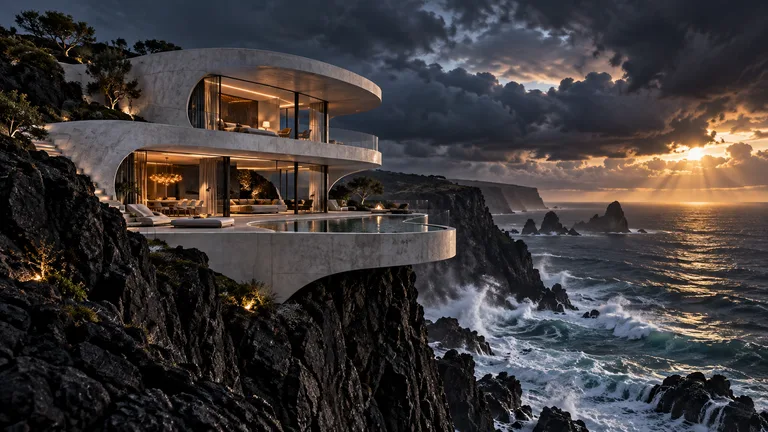
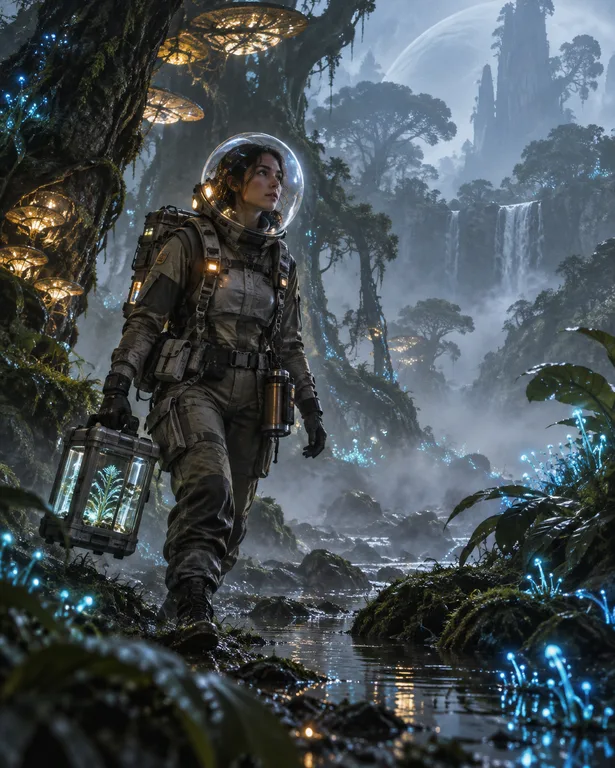
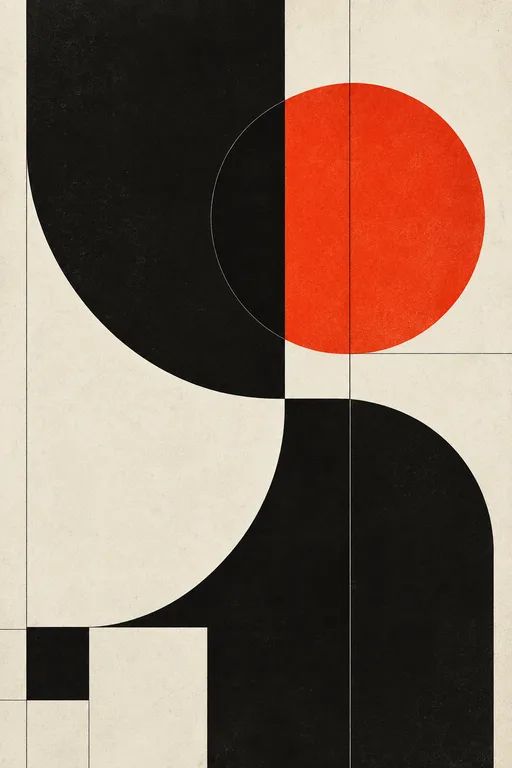
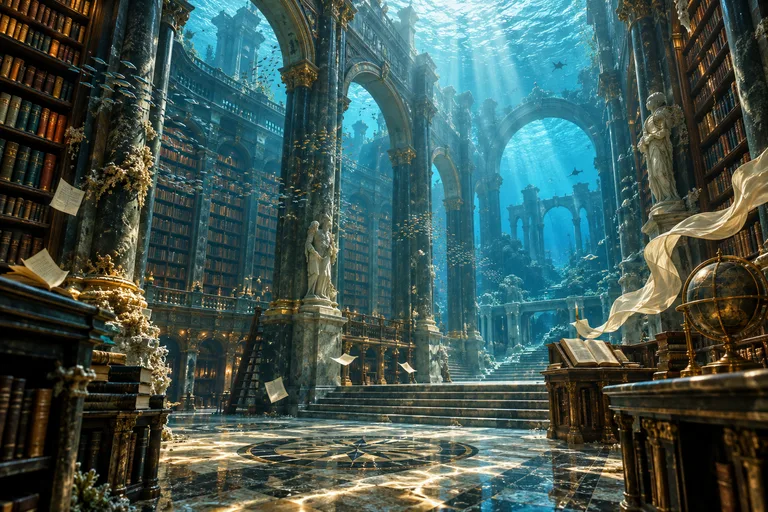
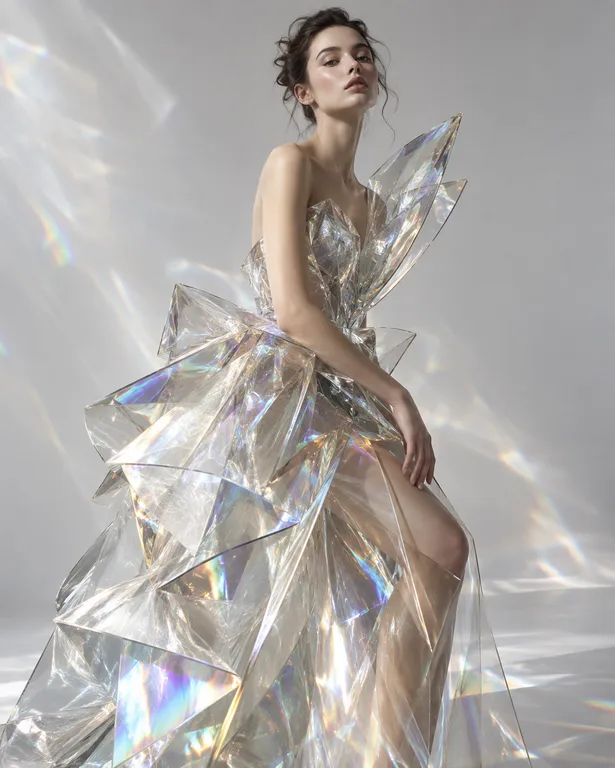
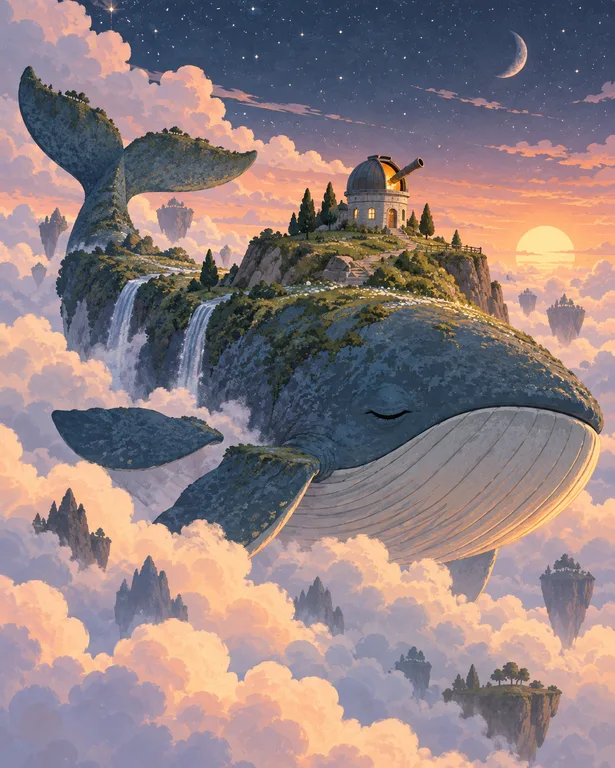
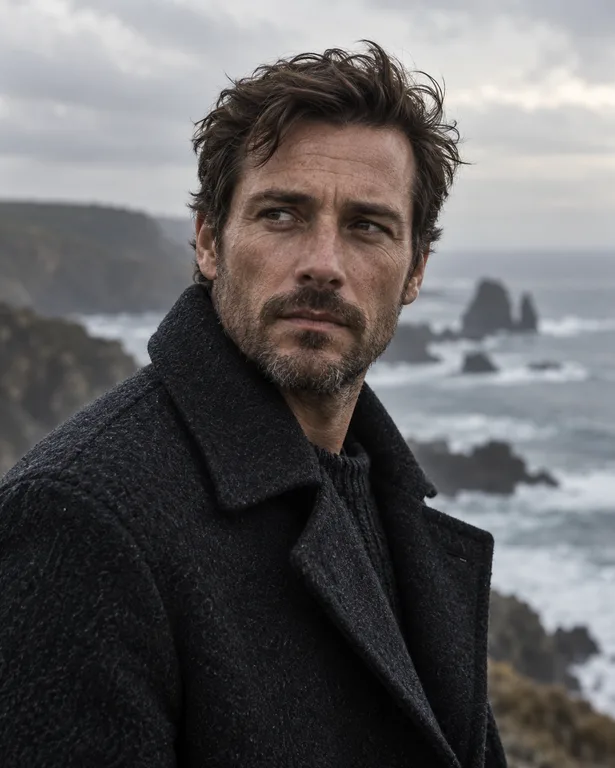
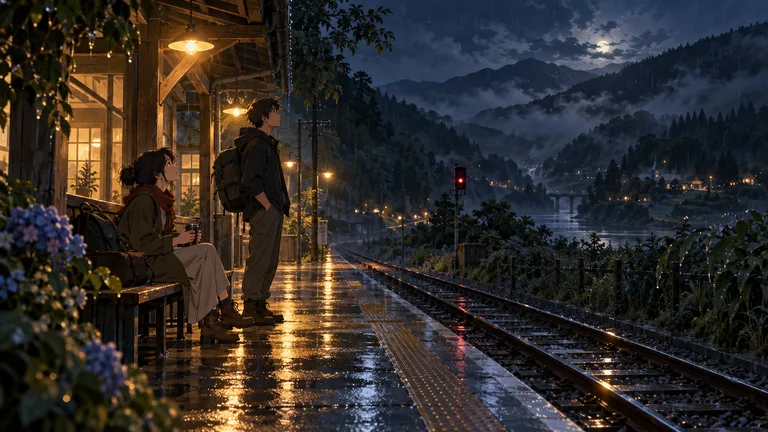
Made with OpenDream
How it works
- 01
Choose a category
Browse categories like portrait, product, poster, fantasy, architecture, fashion, 3D or wallpaper, and open a template whose example matches your goal.
- 02
Fill in the variables
Each template has a few fields, such as the subject, the main color or the setting. Replace them with your own details while the lighting, composition and style around them stay in place.
- 03
Generate, then adjust
Run it, compare results and tweak a variable or the ratio. When you like the outcome, save it to a project so you can return to the same setup.
Why create opendream ai templates with OpenDream
Tested structure
Templates such as Cinematic Portrait, Luxury Product and Retro Travel Poster combine prompt wording, style and ratio that have been checked together.
Variables instead of a blank page
Filling in a handful of fields is easier than writing a full prompt, especially for beginners or when repeating a look across many images.
Wide category range
Categories span portrait, fantasy, anime-inspired, photography, product, poster, logo, social, architecture, fashion, 3D, illustration, wallpaper, character and concept art.
A way to learn prompting
Changing one variable at a time and comparing results shows which parts of a prompt control which parts of the image.
How templates and variables fit together
Most good prompts share a structure: a subject, a setting, lighting, a camera or medium, and a mood. A template fixes the parts that are hard to get right, usually lighting, composition and style, and exposes the parts you are likely to change as variables. That is why a template like Food Photography gives consistent results whether the dish is ramen or a lemon tart.
Variables work best when you keep them specific. 'A red sneaker' works, but 'a red suede high-top sneaker with a white gum sole' gives a product template much more to render. Avoid putting style words into a subject field; typing 'watercolor' into a photographic template sets your request against the template's fixed style.
Templates also suit series work. A shop owner can run Luxury Product for every item in a collection, and a writer can use Book Cover Background for each volume, changing only the subject and color variables. The shared structure keeps the set visually consistent, which is hard to achieve with freeform prompts.
When a template gets you most of the way, finish in the editor. Describe the change in plain language, such as 'make the background warmer' or 'remove the second glass', rather than starting over. If the template is close but not quite right for your idea, remix the result and adjust from there.
Prompt examples
Food Photography, filled in
Overhead food photograph of a bowl of miso ramen with a soft-boiled egg, scallions and nori on a dark slate surface, soft window light from the left, steam rising, chopsticks resting on the rim, shallow depth of field, muted earthy props
This shows the level of detail worth putting in a subject variable; the template's lighting and layout handle the rest.
Try this promptRetro Travel Poster, filled in
Retro travel poster illustration of a mountain railway crossing a stone viaduct above a green valley, flat screen-print colors in teal, cream and burnt orange, bold simplified shapes, sunburst sky, empty band at the bottom for a title, no text
Leaving the title band empty lets you set the destination name yourself in a proper typeface.
Try this promptClay Character, filled in
Clay character of a small cheerful mushroom gardener carrying a watering can, handmade plasticine texture, visible fingerprints, soft studio lighting, pastel green background, stop-motion look, centered full-body pose
Changing only the character description keeps the clay finish consistent across a whole cast.
Try this promptBotanical Poster, filled in
Botanical poster of a flowering lemon branch with leaves and a sliced lemon, scientific illustration style, fine linework with soft color washes, cream paper background, centered composition, generous margins, no text
Describing the plant precisely gives the template's scientific layout an exact subject to render.
Try this promptFantasy Map, filled in
Hand-drawn fantasy map of an archipelago of volcanic islands, sepia ink on parchment, compass rose, tiny illustrated ships and sea serpents, mountain ranges drawn as small peaks, no readable labels
Leaving labels out avoids garbled place names; add your own afterwards in a design tool.
Try this prompt
Start from a template
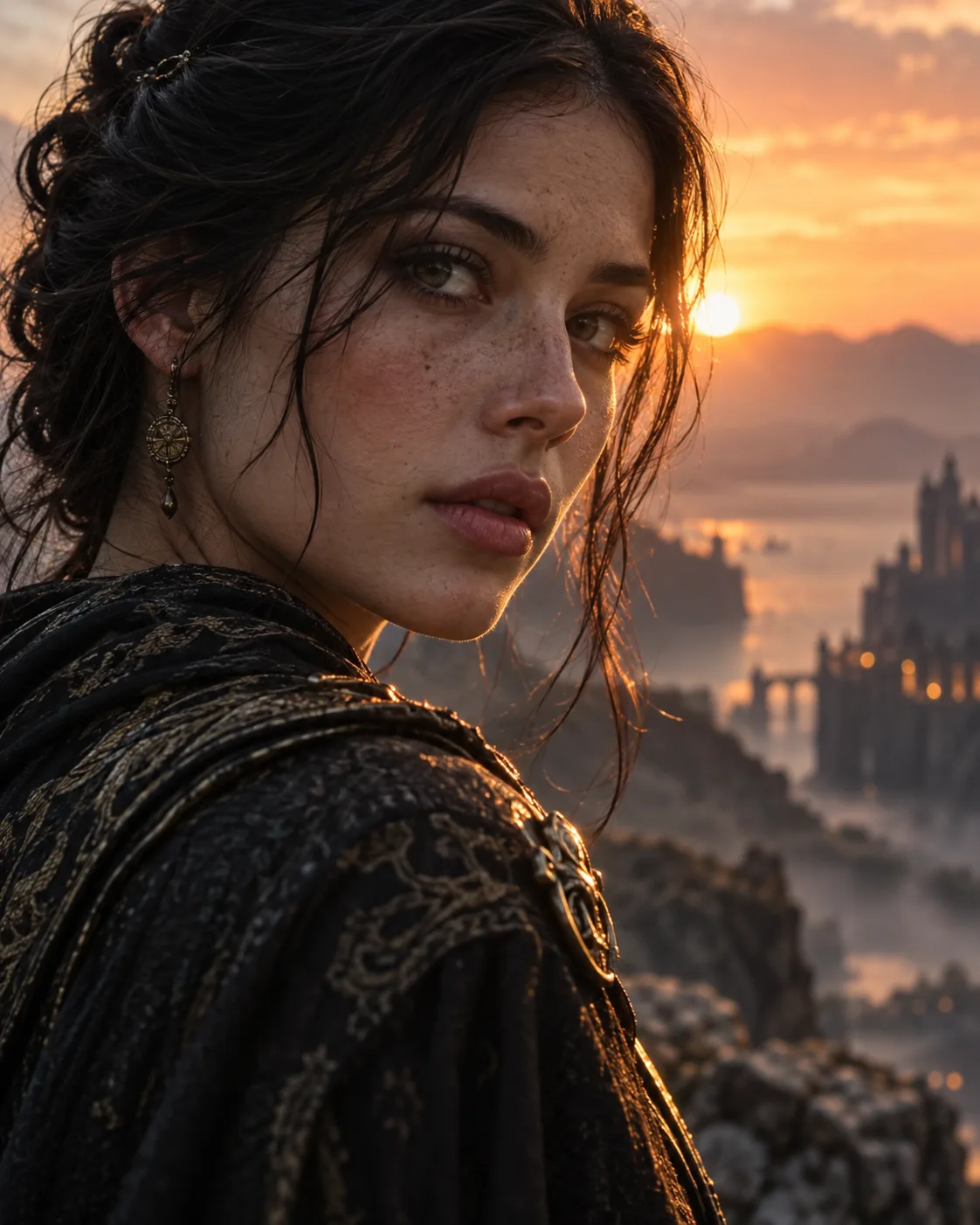
Cinematic Portrait
Filmic close-up portraits with soft rim light and atmospheric haze.
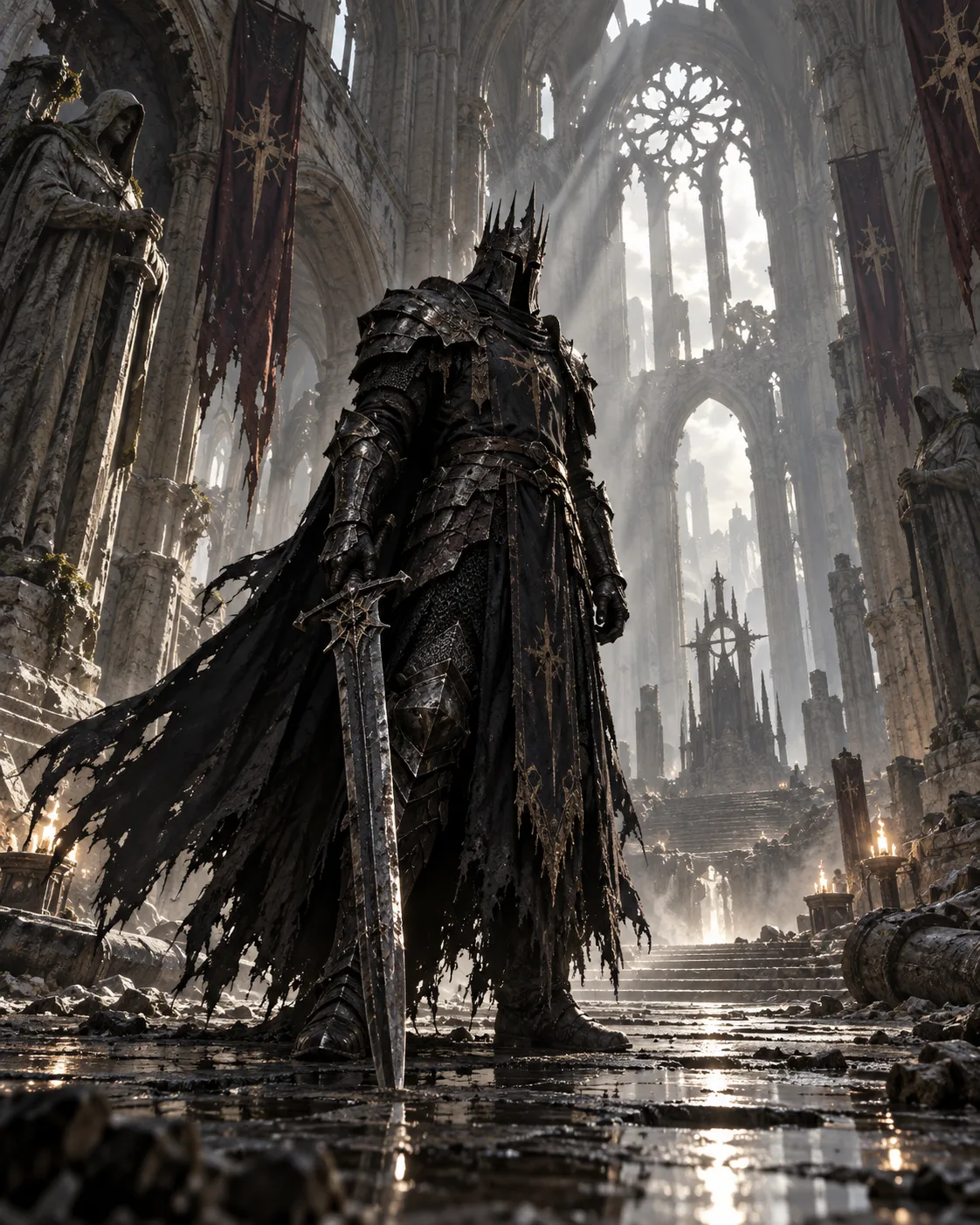
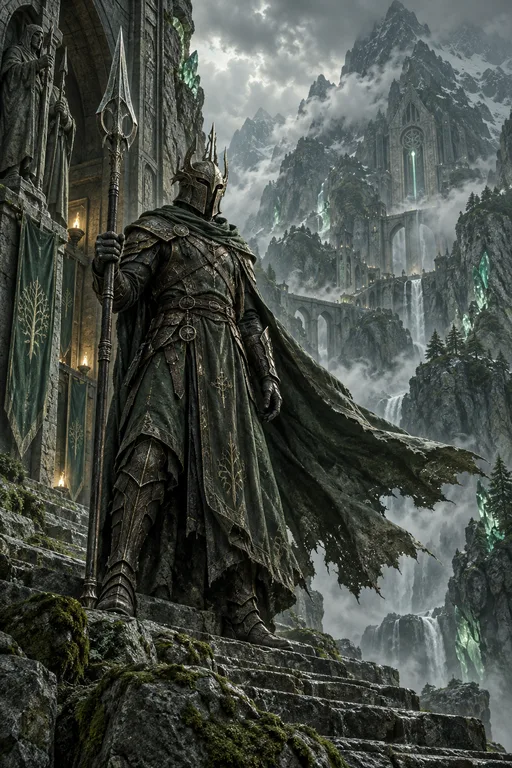
Dark Fantasy Knight
Grounded dark-fantasy warriors in epic, dusty light.
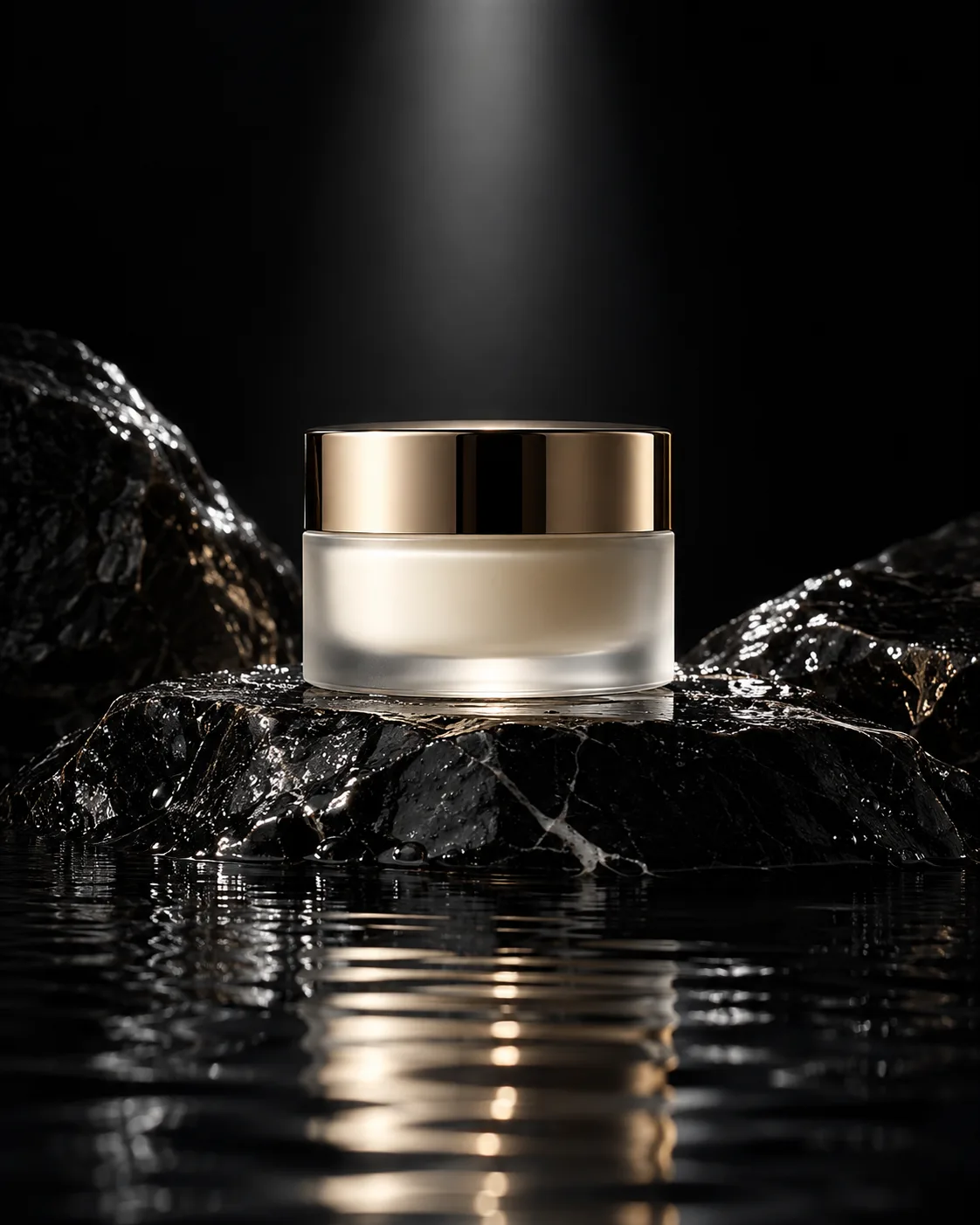
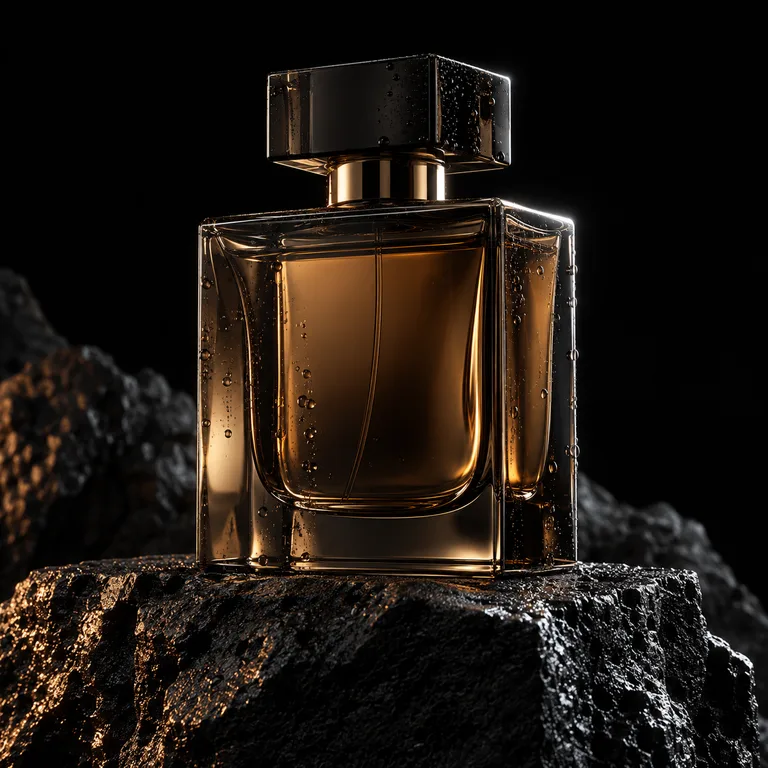
Luxury Product
Premium studio product shots on dark stone.
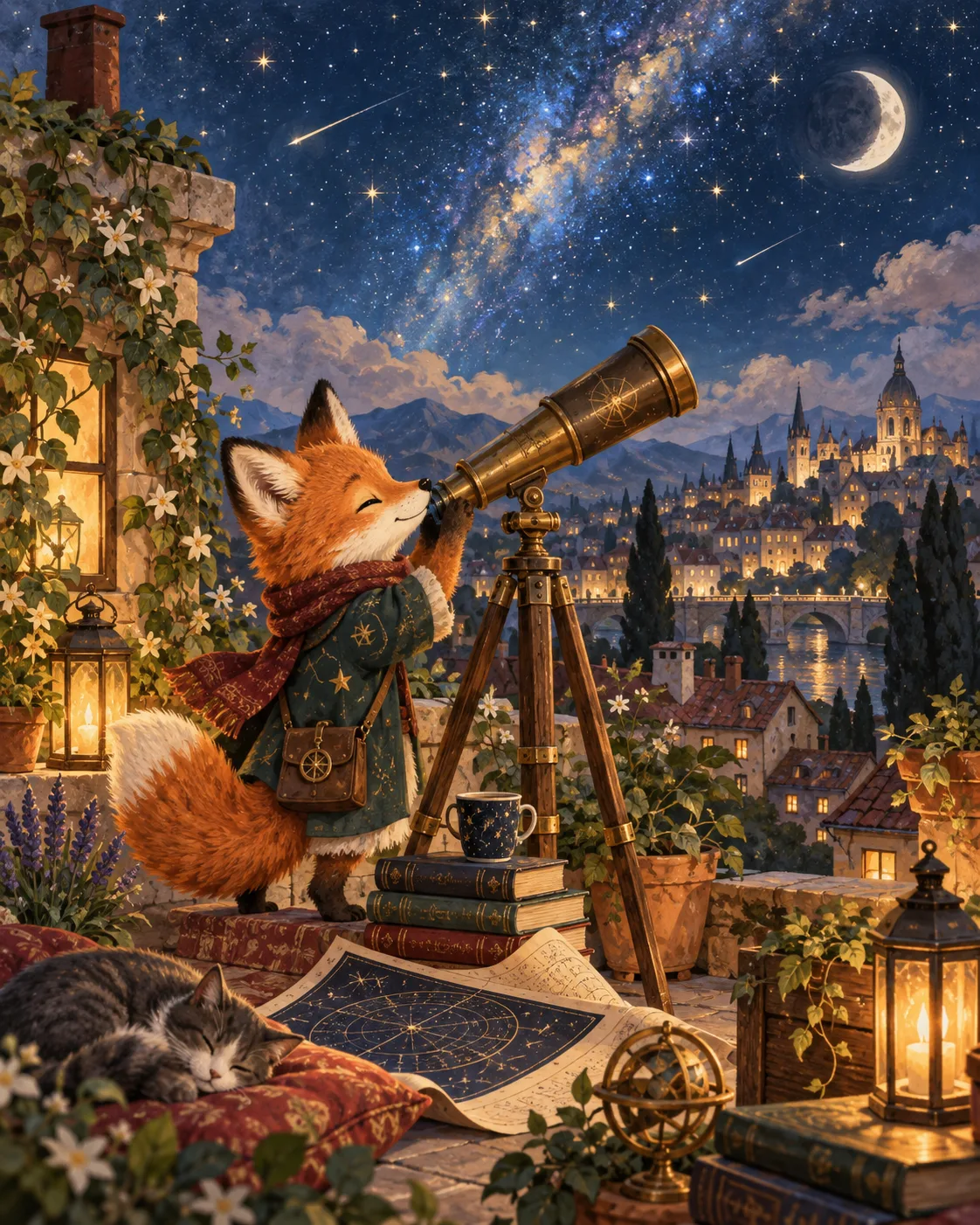
Storybook Illustration
Friendly, sophisticated storybook scenes.
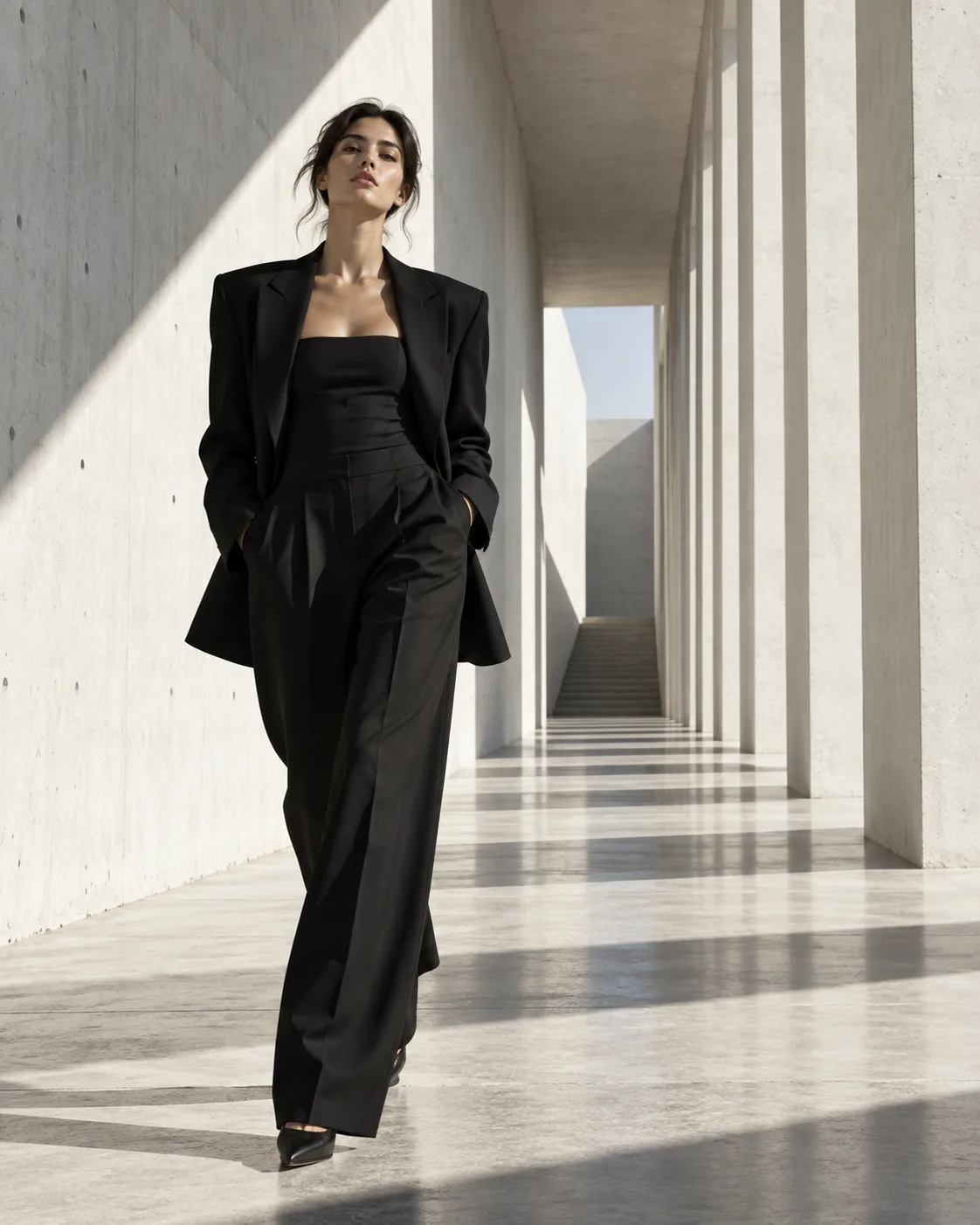
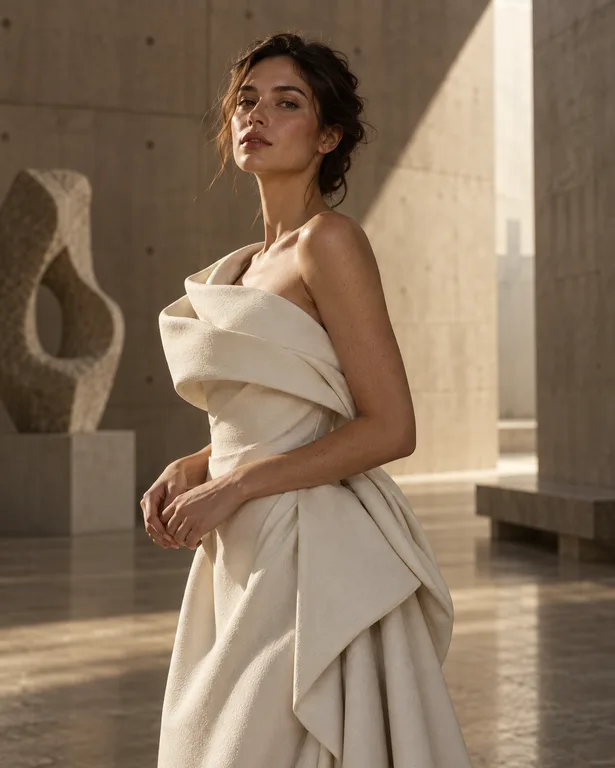
Fashion Campaign
Clean high-fashion campaigns in brutalist spaces.
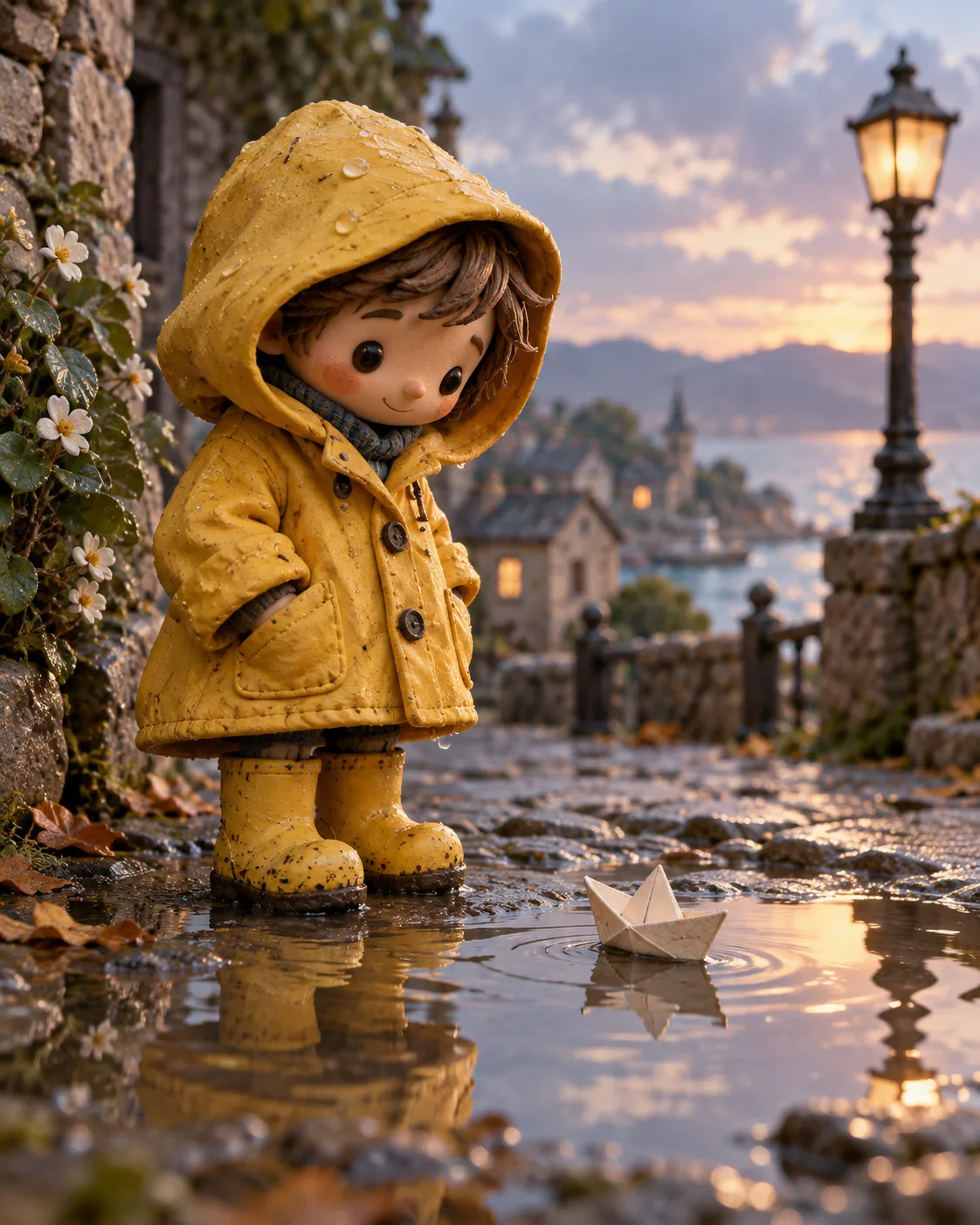
Clay Character
Handcrafted stop-motion clay characters.
Frequently asked questions
- Are templates free to use?
- Generating from a template uses credits like any other generation, and credits are only deducted for images that are actually delivered.
- Which model does a template use?
- Templates work with Smart mode, which picks a model automatically. You can also choose a specific model, such as GPT Image 2 or FLUX.2, if you want to compare results.
- How are templates different from styles?
- A style sets the look, such as watercolor or cyberpunk, and applies to any prompt. A template goes further, fixing composition, lighting and framing for one kind of image, with variables for the parts you change.
- Can I use images made from templates commercially?
- A template only supplies the starting structure. Images you generate from it can be used commercially when you are on a paid plan.
- What if no template fits my idea?
- Pick the closest one, generate, then remix or edit the result in plain language. You can also start from a blank prompt in Smart mode.
Keep exploring
Ready to create?
Pick a plan and you only spend credits on images you actually receive.
Start creating