For creators & brands
AI Poster Generator for Events, Prints and Promotions
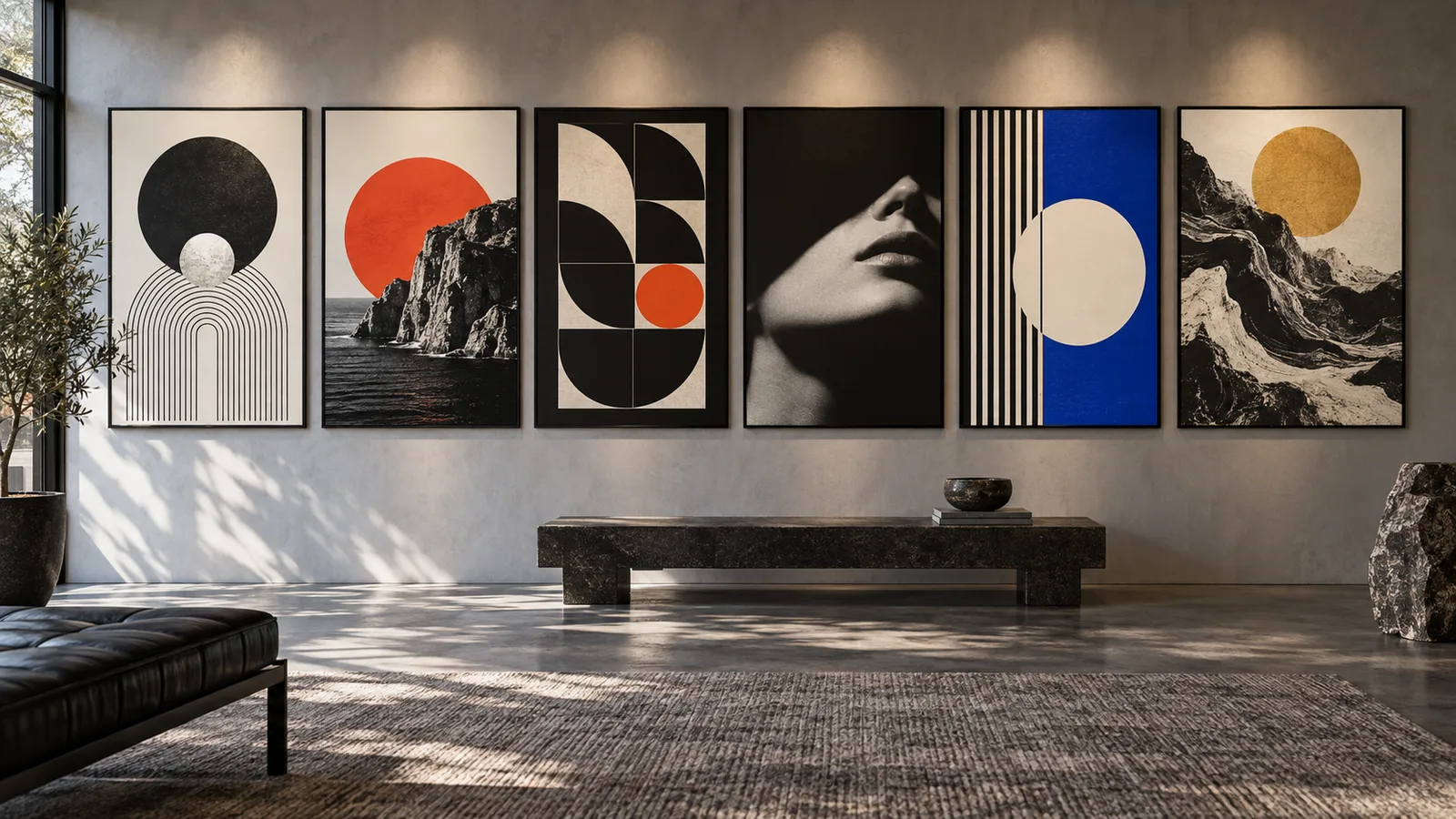
A good poster reads from across a room: one strong image, one short headline, and details that do not fight for attention. Generate the artwork and short display text together, sized for print.
Made with OpenDream
How it works
- 01
Choose a poster shape
Use 2:3 or 3:4 for standard portrait posters and 4:5 for smaller frames. Decide first, because the layout depends on it.
- 02
Write the headline and its position
Put the exact headline in quotation marks, keep it to a few words, and say where it goes: 'large title across the top', 'small date line at the bottom'.
- 03
Proof, then upscale for print
Check the spelling, then upscale the chosen poster (Topaz 4× for large prints) before sending it to a printer.
Why create AI poster generator with OpenDream
Artwork and headline in one pass
Ideogram V3 and GPT Image 2 render short titles well, so a poster can arrive with its main type already in place.
Poster templates
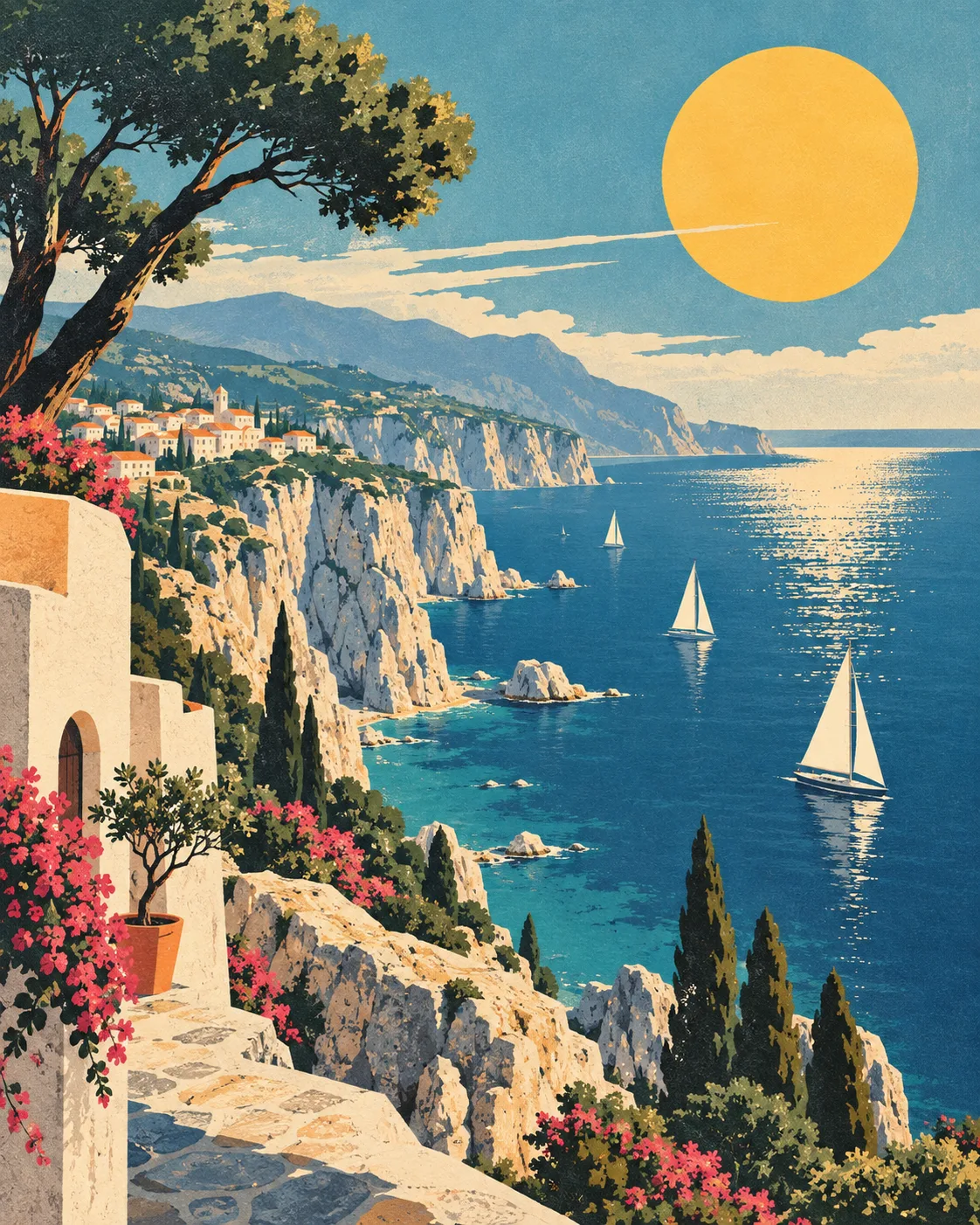
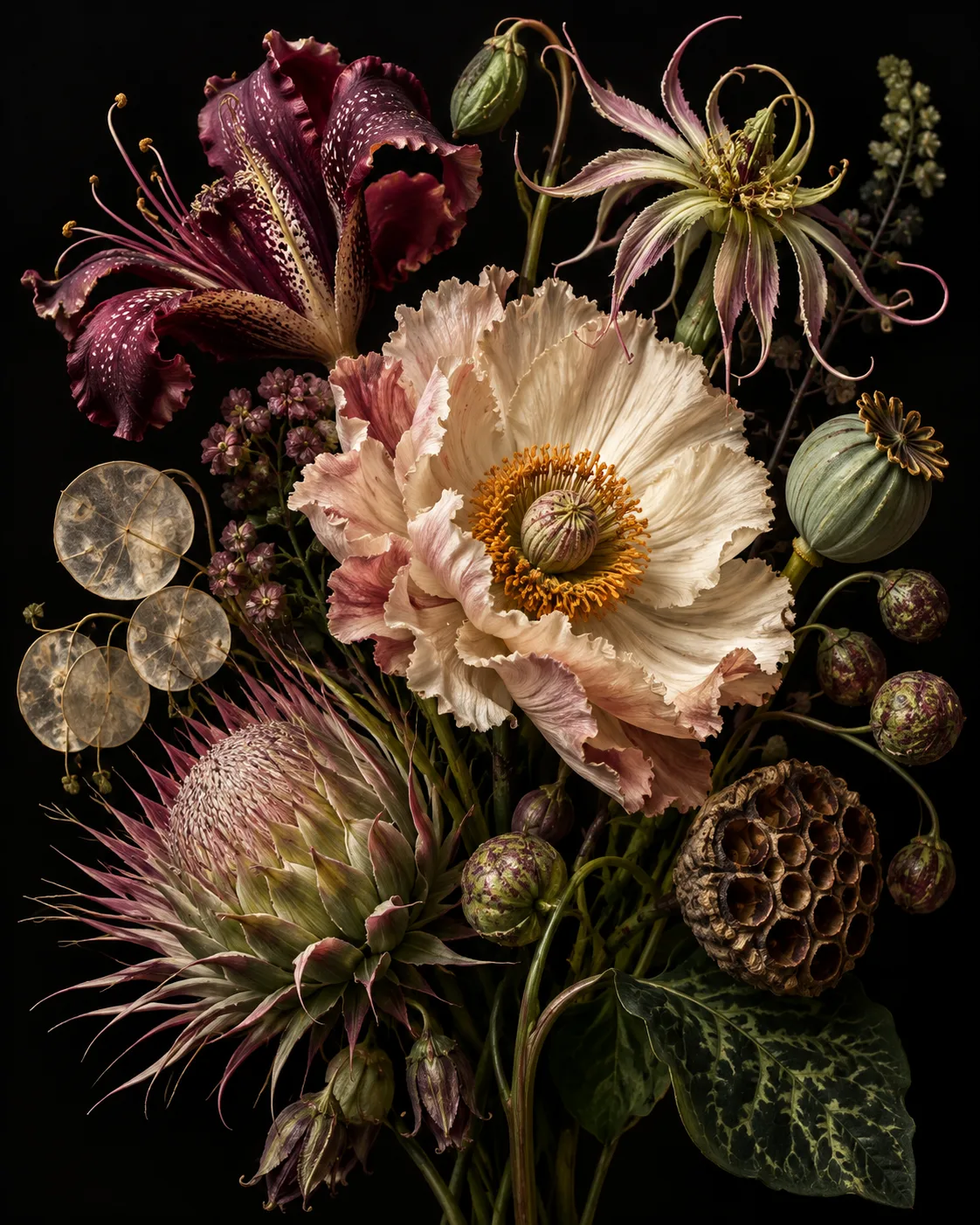
Begin from templates such as a retro travel poster or a botanical print, then change the subject, place and palette.
Print-size output
Some models generate at up to 4K, and 4× Topaz upscaling keeps larger formats sharp.
Matching series
Hold the same style line and layout description to produce a set of posters for a festival, a lecture series or seasonal promotions.
Poster design principles that carry into prompts
Posters rely on hierarchy: one thing is seen first, a second thing is read next, and details come last. In a prompt, that means naming the dominant image, then the headline and where it sits, then any secondary text. Asking for many elements at equal size produces clutter where nothing leads.
Keep generated text short. A title of one to four words and perhaps a date line are realistic; paragraphs, lineups and small print are not. For posters that carry detailed information, generate the artwork with a clear panel or margin and set the smaller text in a layout tool, where you control fonts, spelling and alignment.
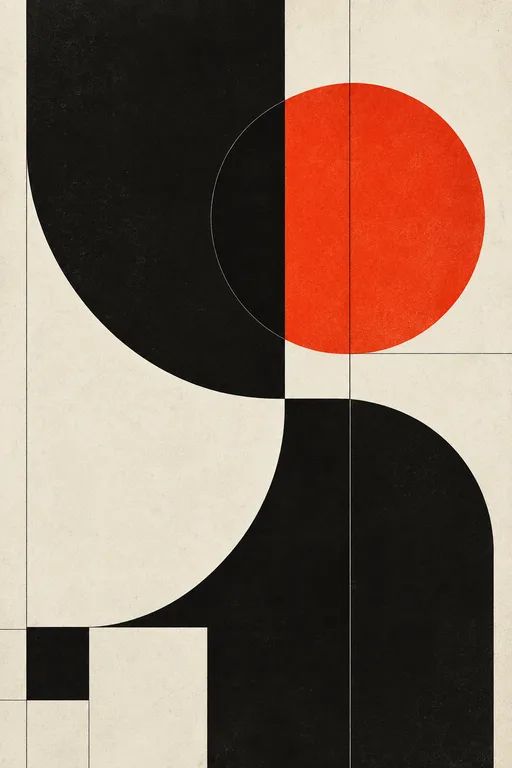
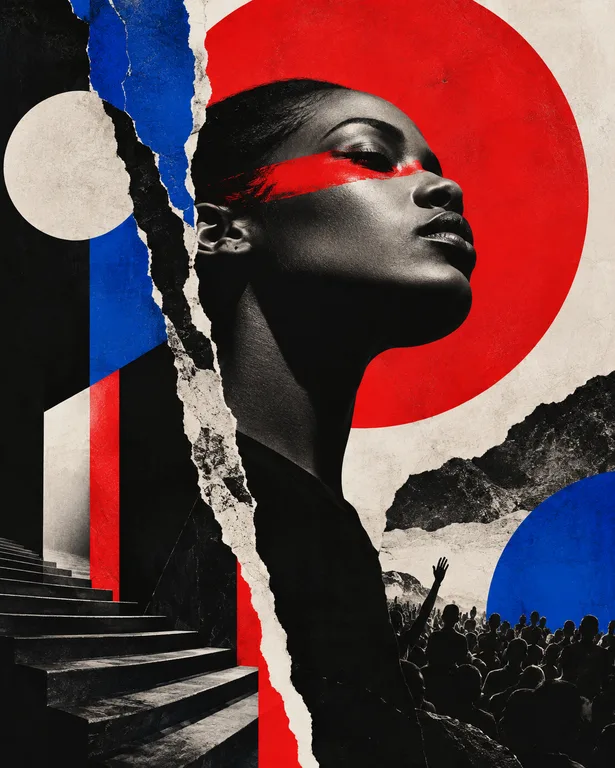
Limited palettes are a poster tradition for good reason. Screen-printed and travel posters often used three to five flat colors, which reads boldly at a distance and holds a set together. Naming the palette ('flat mustard, teal, cream and black') and a print technique ('screen print, slight misregistration, paper texture') gets closer to that look than generic style words.
Plan for print. Leave plain space around the edges so trimming does not cut into type, and upscale before exporting. If you use a print shop, ask for their required size and bleed and crop to match; generated artwork has no bleed, so calm background near the edges makes extending it simple.
Prompt examples
Retro travel poster
Retro travel poster of a fictional coastal town with a lighthouse and red-roofed houses, flat screen-print style in teal, coral, mustard and cream, large headline "Port Alder" across the top in bold condensed letters, plain margin around the edges
A fictional place sidesteps real tourism branding, and the named palette plus print style produces the classic flat look.
Try this promptJazz night poster
Poster for a fictional jazz night, a stylized saxophone player silhouetted against a huge orange moon, deep indigo background, title "Late Blue" in tall art deco lettering at the bottom, grainy risograph texture, two ink colors
Risograph texture and a two-ink limit give a distinctive printed feel while the short title stays legible.
Try this promptBotanical print
Botanical poster of a single fern frond drawn with scientific-illustration linework, soft sage green on warm off-white paper, small label "Polypodium" centered below the plant, lots of empty space, gallery print aesthetic
Single-subject botanical layouts leave room for type and suit framed prints.
Try this promptEvent poster with a text panel
Poster artwork for a community science fair, paper-cut illustration of planets, test tubes and a small rocket in the upper two thirds, bright primary colors, a plain white panel across the bottom third left empty for event details
Reserving an empty panel means dates, times and venue can be set accurately in a layout tool afterwards.
Try this promptMinimal film-style poster
Minimal film-style poster for a fictional thriller, a single red umbrella in a vast grey rainy plaza seen from high above, strong negative space, title "Undertow" in thin spaced capitals near the bottom
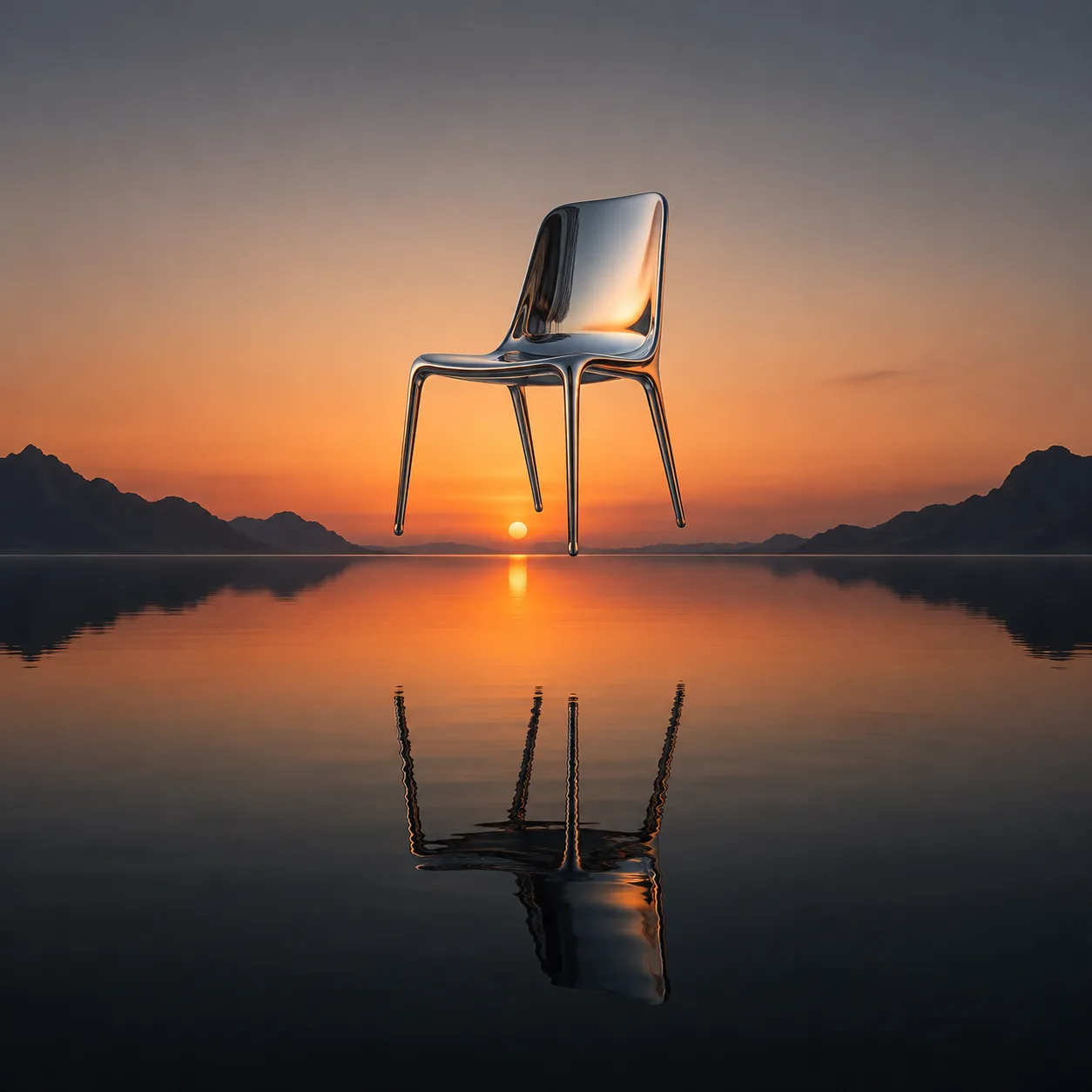
One striking image with plenty of empty space is the core of minimal poster design, and it gives the title room to breathe.
Try this prompt
Start from a template
Frequently asked questions
- Can the AI add text to my poster?
- Yes, for short headlines; Ideogram V3 and GPT Image 2 are the best choices. For schedules and fine print, leave an empty panel and add the text in a layout tool.
- What aspect ratio should a poster use?
- 2:3 and 3:4 fit common portrait poster sizes, and 4:5 suits smaller frames. Choose the closest one to your print size and crop the remainder.
- Will it be sharp enough to print?
- Generate at the highest resolution the model offers, then upscale with Topaz 4× for large formats. Confirm the print shop's size requirements before exporting.
- Can I use posters to promote a business event?
- Yes on a paid plan, which includes commercial use. Leave out real brand logos and copyrighted characters.
Keep exploring
Ready to create?
Pick a plan and you only spend credits on images you actually receive.
Start creating